Every OS update has its unique version and build. Consequently, the easiest way to find out if the next Windows 10 Update is installed is to check the OS Version rather than examine your OS for changes and new features. And here is how.
Windows 10
Windows 10 is the latest version of Microsoft OS for consumer use by far. It was released in the summer of 2015 but is continuously being updated. Every Windows 10 update brings a lot of changes.
In Windows 10 Microsoft introduced the modern Settings app that should replace the deprecated Control panel but despite the fact that 5 years have passed, Microsoft is still in the process of migrating settings from Control panel to the Settings interface. It is indeed very complicated and confusing to use both a deprecated and modern interfaces for configuring your PC. So many of users have problems with it. Every next update brings a piece of improvements that makes a lot of our guides useless. So, it is these changes that are the reason for writing all kinds of new instructions and constant updating of existing ones.
Many people hate Windows 10 for its problems and glitches and wish they could switch back to the old good and stable Windows 7. But unfortunately, you can’t buy a new PC without have to deal with the 10th version of Microsoft OS, because in most cases it is the only supported operating system for the newest hardware.
Black Screen On Windows 10 Creators Update Installation
Many users reportedly encountered the black screen issue when they tried to install Windows 10 Creators Update using the official Upgrade Assistant utility by Microsoft.
The Issue looks like the following: when the Upgrade Assistant finishes its work under Windows 10, it reboots the PC to begin the upgrade procedure. Thus, you see the progress percentage on the blue screen. And when it reaches 30% or so the system is rebooted once more and boots to a black screen without a cursor.
How to Install the Next Windows 10 Update
In this guide we will tell you about all possible ways to install the next Windows 10 Updates right now. We know that a lot of you can’t stand waiting for automatic updates. Choose the method you like depending on which is more suitable for you and how soon you wish to install the next OS version.
Windows 10 Freezes Randomly. How to fix?
Windows 10 is a rather successful operating system. Since the release in August 2015 it has received a tonne of updates and patches claimed to improve stability and decrease vulnerability. It should be said that Windows 10 is one of the most stable working systems ever produced by Microsoft. But nevertheless it is able to glitch and work unstable from time to time due to various reasons. And in most cases it is quite difficult to find out what exactly makes your Windows 10 freeze when it freezes randomly – without any obvious reasons. In this guide we will talk about possible reasons that are able to make Windows 10 freeze randomly, how to troubleshoot and fix the issues in Windows 10. Let us make your PC work stable again. Before you begin ensure to backup all your important data (photos, documents, etc) from a problem computer.
The application has failed to start because its side-by-side configuration is incorrect – how to fix
Users often face the error “The application has failed to start because its side-by-side configuration is incorrect” on their Windows 10, 8 or even Windows 7 when trying to launch the program. In this article about the reasons of the error and our step-by-step guide on how to fix the error.
Where is My Computer on Windows 10
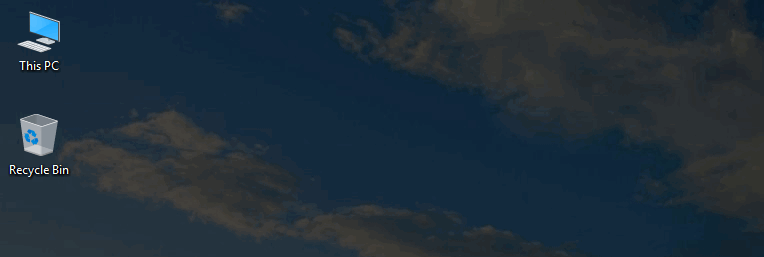
Where is My Computer on Windows 10? You may have noticed that by default My Computer icon is hidden from the desktop on Windows 10. And you probably don’t like the lack of your most used icon. Apparently, you want to add it to be able to quickly call system settings or navigate to your disks list: hard disks, SSDs, USB flash sticks or DVD/BluRay, right? Well, let us see how to get it back. Here is the simple tutorial on how to add My Computer (This PC) icon to desktop in Windows 10 and 7.