Automatic maintenance is a number of measures designed to maintain your system in good working condition: diagnose problems, install updates, defragment hard drives, run anti-malware scans, etc, at specified time if you are not using your PC. Otherwise the operations should be rescheduled to another time. In most cases this feature is really helpful because it keeps your Windows and apps up-to-date and protects against malware. But in some situations you might want to turn it off because it does something wrong. Here is how to disable automatic maintenance in Windows 10 and Windows 7.
Windows 10
Windows 10 is the latest version of Microsoft OS for consumer use by far. It was released in the summer of 2015 but is continuously being updated. Every Windows 10 update brings a lot of changes.
In Windows 10 Microsoft introduced the modern Settings app that should replace the deprecated Control panel but despite the fact that 5 years have passed, Microsoft is still in the process of migrating settings from Control panel to the Settings interface. It is indeed very complicated and confusing to use both a deprecated and modern interfaces for configuring your PC. So many of users have problems with it. Every next update brings a piece of improvements that makes a lot of our guides useless. So, it is these changes that are the reason for writing all kinds of new instructions and constant updating of existing ones.
Many people hate Windows 10 for its problems and glitches and wish they could switch back to the old good and stable Windows 7. But unfortunately, you can’t buy a new PC without have to deal with the 10th version of Microsoft OS, because in most cases it is the only supported operating system for the newest hardware.
Desktop Icons Disappeared on Windows 10. How to restore them?
Desktop icons use to disappear rather often without any reason. You work on your machine and in a moment you discover that all icons are gone and all you can see is your wallpaper on bare desktop. This used to happen on Windows 7 and unfortunately this still happens on Windows 10 as well. Many users have been plagued by this recurring problem for months since switching to Windows 10. By the way, very often desktop icons disappear when a second display is used because of a rare glitch. So, let’s find out how to fix the problem and restore desktop icons on your screen.
All methods to turn on network discovery in Windows 10
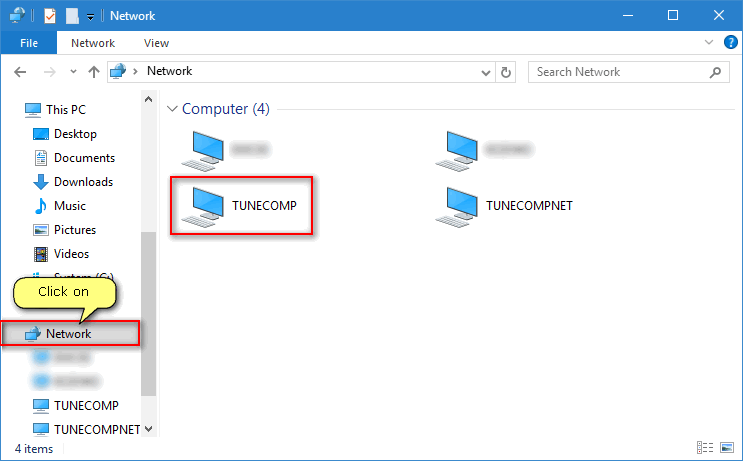
When network discovery is turned off no one can access your shared folders, download and upload files and even see you PC in the list of network devices. It is okay to restrict access by turning off network discovery when you are connected to the public hotspot at Starbucks, but when you are at home you may want to make your machine accessible by all other trusted devices belonging to you or to your organization. Here is how to turn on network discovery in Windows 10 using different methods.
System and Compressed Memory Process Causes High Disk and CPU Usage in Windows 10
“System and compressed memory 100% disk usage! Is this normal?” – often ask users on IT forums. Today we are going to discuss the issue and mention all possible solutions on how to stop System and compressed memory cause high disk and CPU usage in Windows 10. Please, note that there is no universal solution or fix. Different solution can work in your case. So you should try each one to fix the issue.
“The User Name or Password is incorrect. Try again” in Windows 10. How to fix
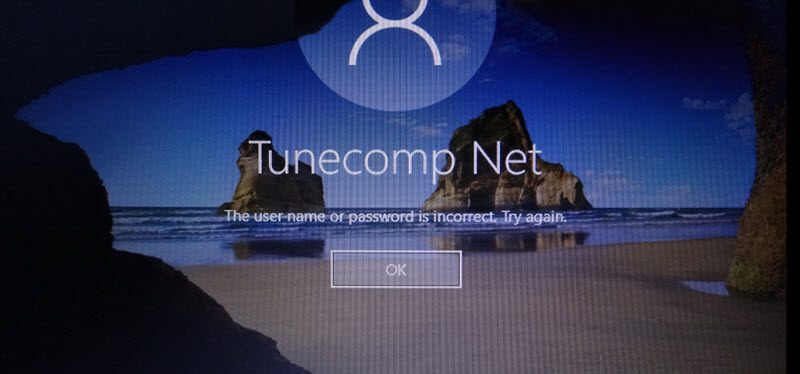
Today we will talk about the error The User Name or Password is incorrect. Try again that happens quite often on Windows 10 at logon. The second confusing thing is when you click OK you see two identical user accounts (yes, with exact same names) on the welcome screen and you don’t know which one you need to select.
Therefore, in this article, a few words about the problem. and how to fix the error “The User Name or Password is incorrect. Try again”.
How to Align a Partition Without Formating and Losing Data in Windows 10, 8 or 7

If you used Windows 7, 8 or 10 to partition your hard drive, your partitions are likely to be already aligned. But this article will be useful for you if you edited volumes in Windows XP or cloned them using various third-party software. Here is how to check the alignment of HDD or SSD and align a partition using free utility without formatting and risk of data loss.