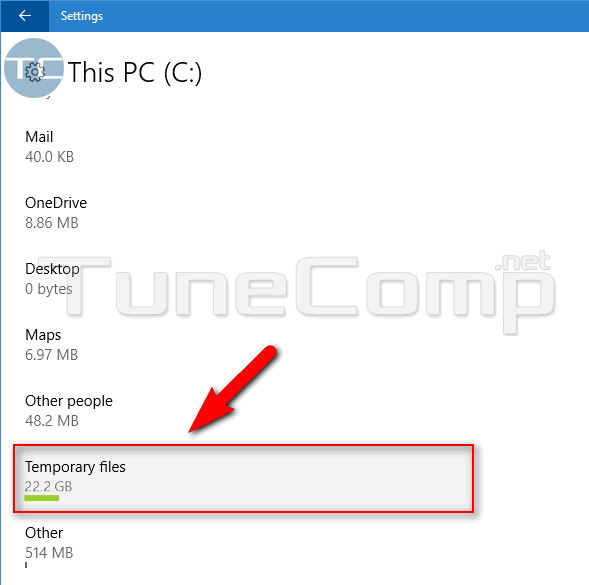
You can face the problem of low disk space on the system drive after you have installed the next update for Windows 10. Here is how to clean up your SSD storage to free up some space.
Windows 10
Windows 10 is the latest version of Microsoft OS for consumer use by far. It was released in the summer of 2015 but is continuously being updated. Every Windows 10 update brings a lot of changes.
In Windows 10 Microsoft introduced the modern Settings app that should replace the deprecated Control panel but despite the fact that 5 years have passed, Microsoft is still in the process of migrating settings from Control panel to the Settings interface. It is indeed very complicated and confusing to use both a deprecated and modern interfaces for configuring your PC. So many of users have problems with it. Every next update brings a piece of improvements that makes a lot of our guides useless. So, it is these changes that are the reason for writing all kinds of new instructions and constant updating of existing ones.
Many people hate Windows 10 for its problems and glitches and wish they could switch back to the old good and stable Windows 7. But unfortunately, you can’t buy a new PC without have to deal with the 10th version of Microsoft OS, because in most cases it is the only supported operating system for the newest hardware.
How to Clear Windows Update Cache in Windows 10
Why Clear the Cache?
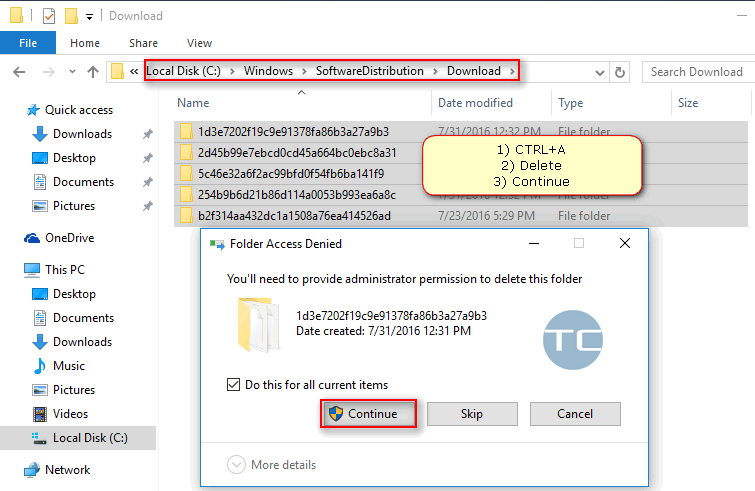
The general answer is: when you have issues related to Windows Updates. Here are the most spread specific reasons:
- your machine cannot find available updates for a long period of time (two or three days);
- stuck “searching for updates” in the Settings app;
- stuck “preparing to install updates” on the screen when you reboot or shutdown your system;
- you encounter errors during the installation of the new OS version;
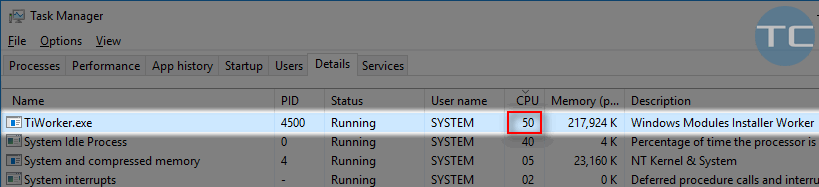
- TiWorker.exe is using your CPU for several hours and is not going to stop its activity;
- you would like to free some disk space by deleting some cache files.
How to shutdown the computer using cmd or a bat file

The question: I need to shutdown my computer immediately (without waiting) using cmd. How can I do it? From this article you will learn how to shutdown your PC using the command prompt and using the bat-file on Windows 10 example.
How to Fix High CPU and Disk Usage Caused by Tiworker.exe (Windows Modules Installer Worker) Process on Windows 10
What is TiWorker.exe?
TiWorker.exe (Windows Modules Installer Worker) is a system process in Microsoft Windows which is responsible for installing new modules and updates. Respectively, it is able to use your CPU and produce a high load on your disk. Usually the CPU usage hovers between 30 and 50% but in some cases TiWorker can load CPU up to 100%. It goes without saying that this will cause bad performance of the system.
So let us find out what to do if you encounter high CPU usage by TiWorker.exe component. Read our tips upon how to fix the high usage of system resources caused by TiWorker.exe process on Windows 10. This guide can also be use to solve the same problem on Windows 8.1 and Server 2016 as well.
How to Open the Task Scheduler in Windows 10
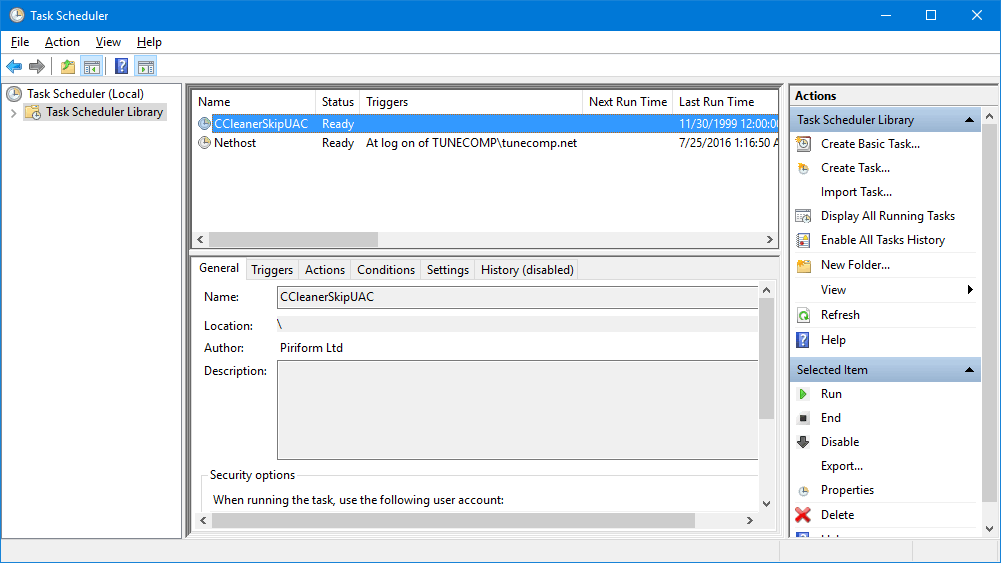
Task Scheduler is a component of Microsoft Windows designed to schedule the launch of programs at a defined time and manage tasks in the operating system.
You can launch programs, terminate processes, control their priority and much more using this built-in tool.
In this short guide we will show all possible ways to launch the Task Scheduler in Windows 10.
How to undo ‘auto arrange icons’ in Windows and restore the previous arrangement
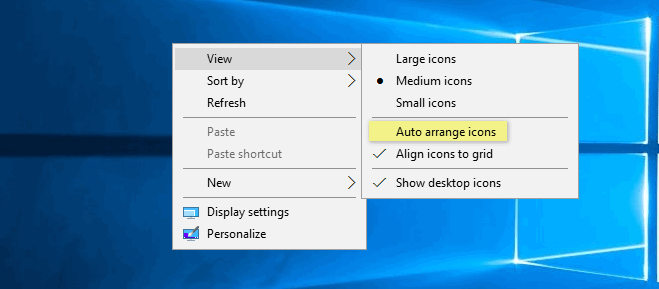
The Question: What can I do if I accidently clicked on Auto arrange icons on the desktop? How can I revert it? I liked the previous arrangement so much. I got used to it. Here is the solution on how to undo Auto arrage icons on the desktop. It works in Windows 10, 8.1 and 7.