Contents
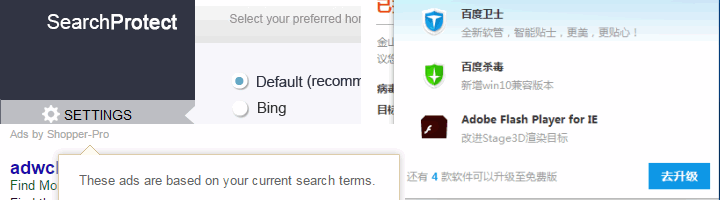
Adware is a kind of unwanted software that is designed primarily to bring revenue to its owners rather than for users’ profit. In many cases adware programs are totally useless. They can pretend to optimize performance of your PC, find best prices, offer discounts, help download music and videos for free and even promise to block ads while their only aim is to inject ads in your browser, show you ads on the desktop, install other sponsored software. In this article we will explain:
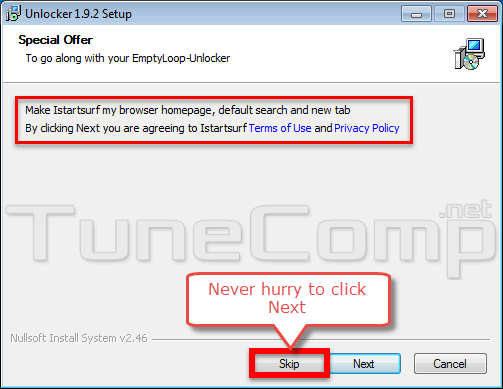
Many developers of freeware programs include sponsor’s software in their installation packages. Sometimes it is possible to refuse from sponsor software installation. But in some cases the unwanted software installs itself without user’s permission (so called silent mode).
So be sure to unset the checkboxes before clicking Install while installing new software.
In most cases ads are generated by harmful browser extensions. Those extensions usually add to browser during the installation of various freeware programs.
There exist several malware-removal tools. Also it is possible to remove malware manually. But we recommend to combine these two methods into the universal removal algorithm. Follow the steps of the manual.
Save your work and exit all applicatios, because you will have to reboot your computer.
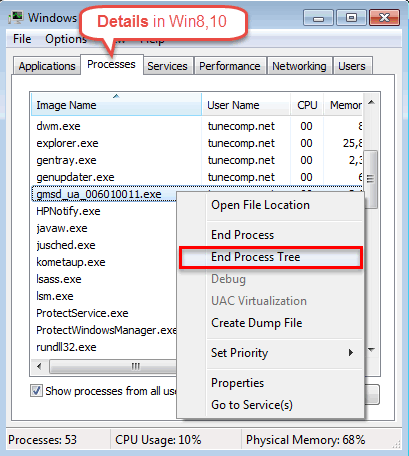
Launch the task manager. Go to Processes tab (in Windows 7) or to Details tab (in Windows 8 or 10). Look through the list of running processes. Right-click the suspicious processes (with strange names, chinese symbols, etc) and select End Process Tree:
If you see the message Access denied when you try to kill the process, just proceed to the next step.
If you do not know if the process is harmful, right-click it and select Open file location. This will help you to understand what kind of process it is:
In our example it is obvious that the process belongs to potentially unwanted program. Look for uninstall.exe and uninst.exe in the folder. Run it to remove the adware program or PUP:
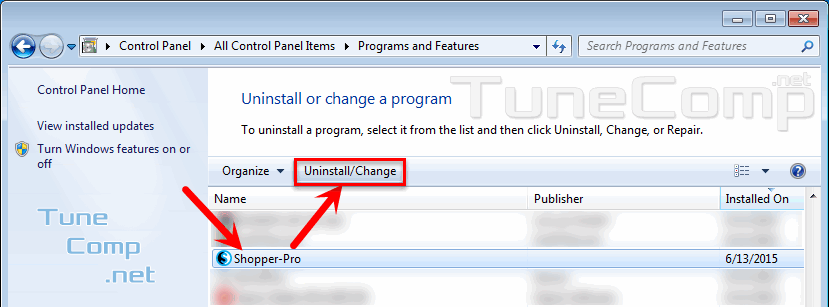
Go to Control Panel, choose Programs and Features (in Windows 10 go to Settings – System – Apps and features).
Click on Installed On to sort the programs by date. Look throught the list of recently installed software. Uninstall all malicious, suspicious and unknown applications:
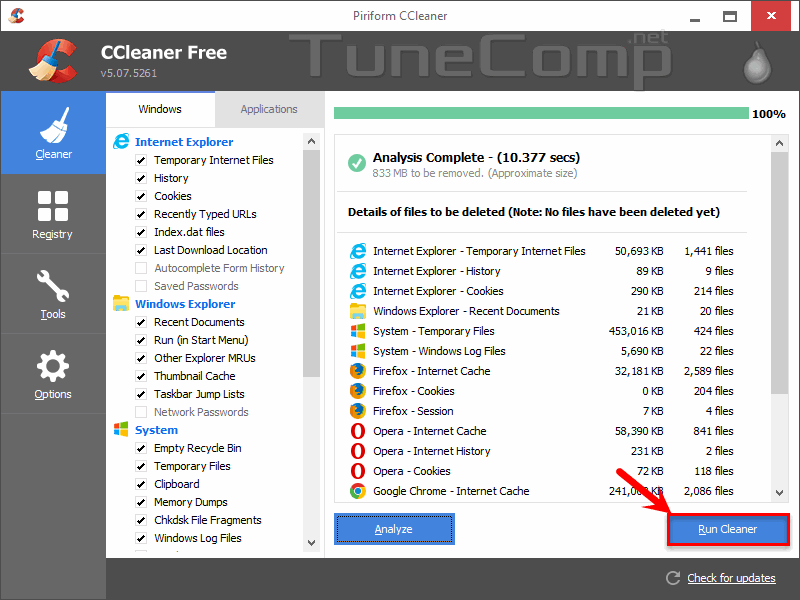
Use the CCleaner to wipe rubbish:
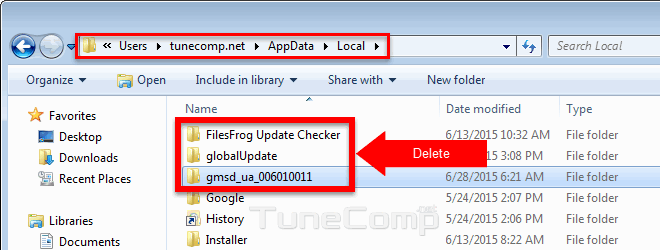
Then look through \AppData\Local\ directory. If there are some suspicious folders with strange names delete them:
In most cases it is located here:
C:\Users\username\AppData\Local\Temp\
Almost every malware program extracts its files to this folder:
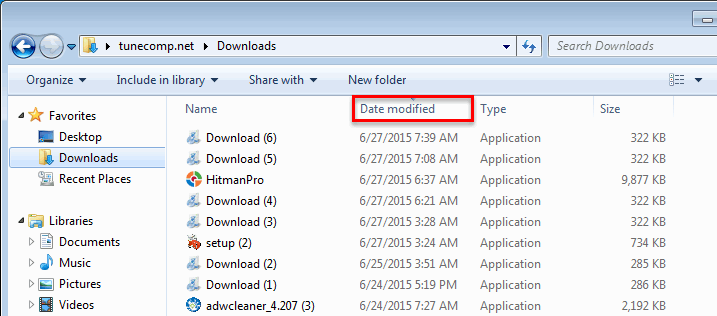
Try to find out which files from Internet could infect the system with malware. We advise that you sort files by date:
Delete suspicious files.
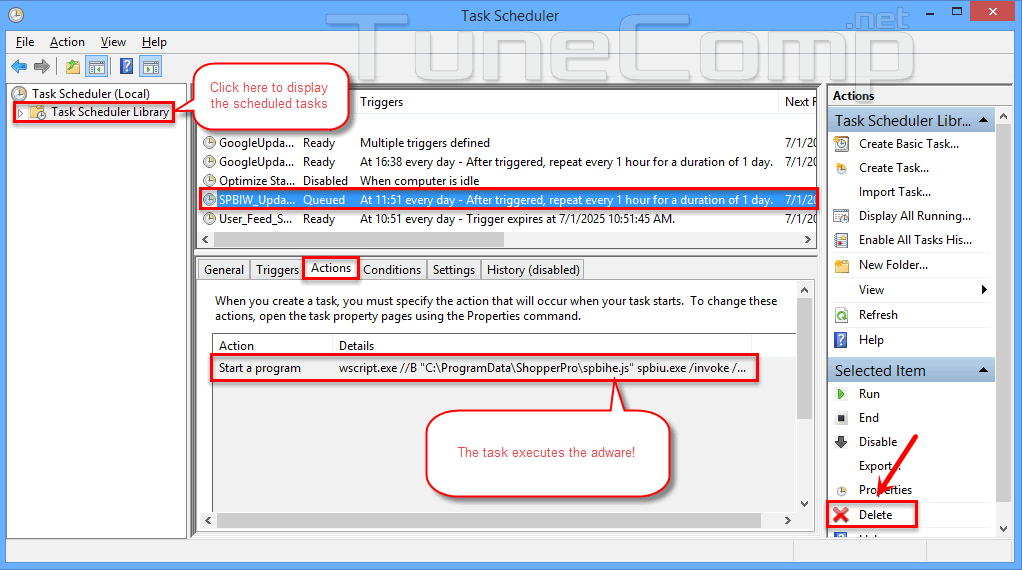
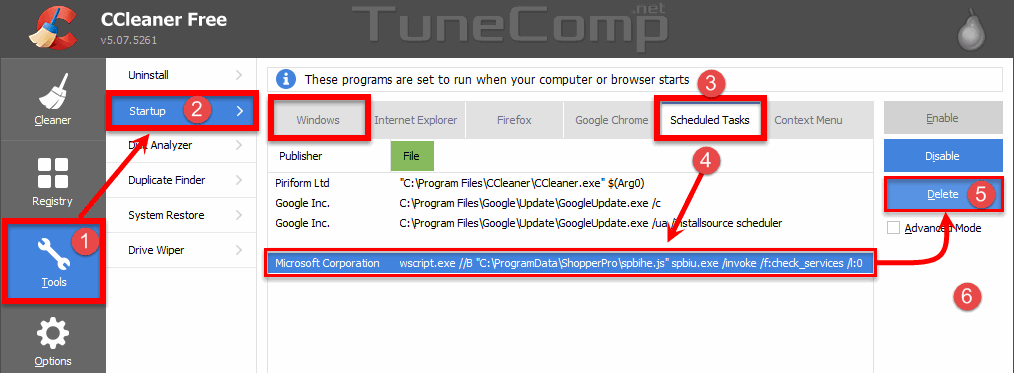
Search for harmful sacheduled tasks that can launch a hijaking page at startup or something like that. If you see the task designed to run suspicious file delete it. Very often harmful software uses to launch files from \AppData\Local\ directory or subdirectories. Usually the aim of such tasks is to overwrite some keys in registry to make the malware removal process as hard as possible.
Delete such tasks:
By the way it is very convenient to manage the startup items with CCleaner:
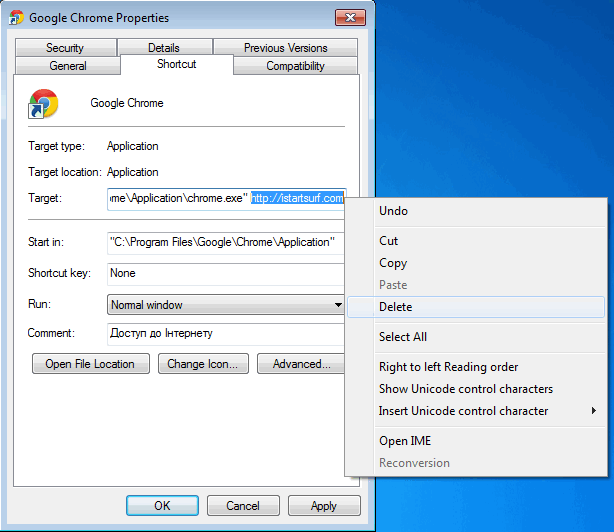
There should not be any arguments in the targets. For instance:
… http://example.com
Correct if needed. If the paths are modified delete the shortcut and create a new one manually.
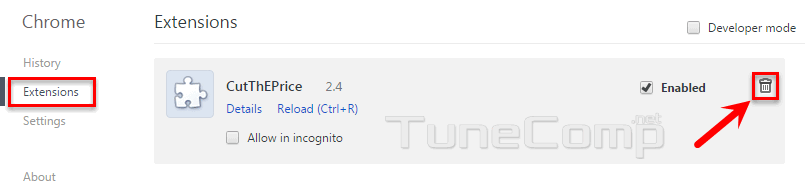
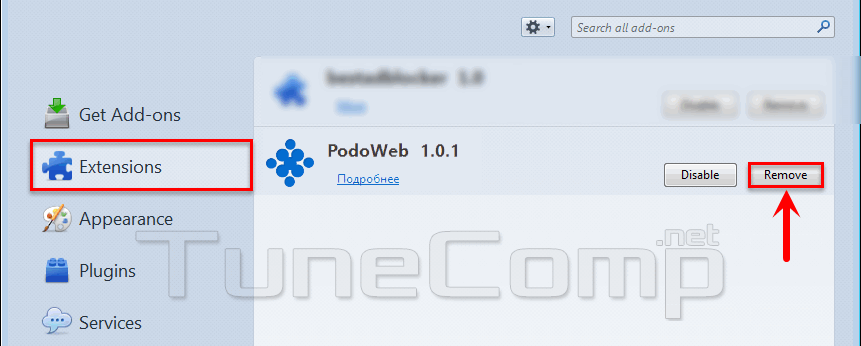
Check all extensions. If there are suspicious ones disable or remove them. As a variant you can also perform the reset procedure for all installed browsers (How to)
Remove adware extension from Chrome:
Remove unwanted adware extension from Mozilla Firefox:
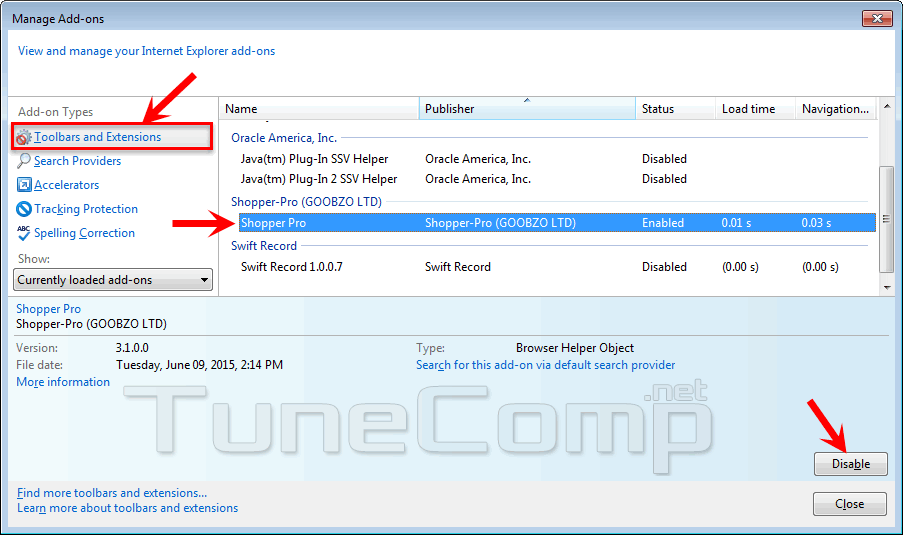
Disable adware add-on in Internet Explorer:
Read the detailed manual on how to easily remove unwanted add-ons and extensions.
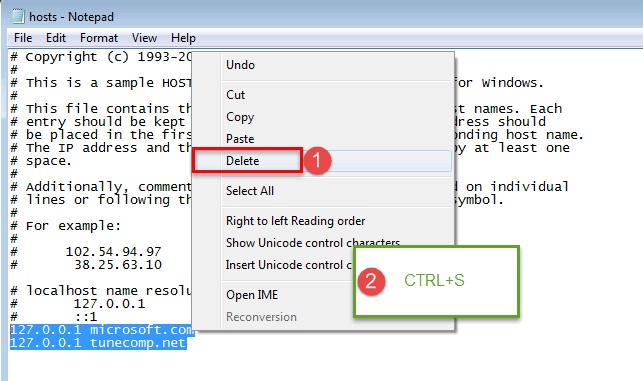
Very often hackers change your DNS to show ads in your browser. Specify the correct DNS servers. You may use Google DNS: 8.8.8.8. To take effect please restart your computer or clear DNS cache:
ipconfig /flushdns
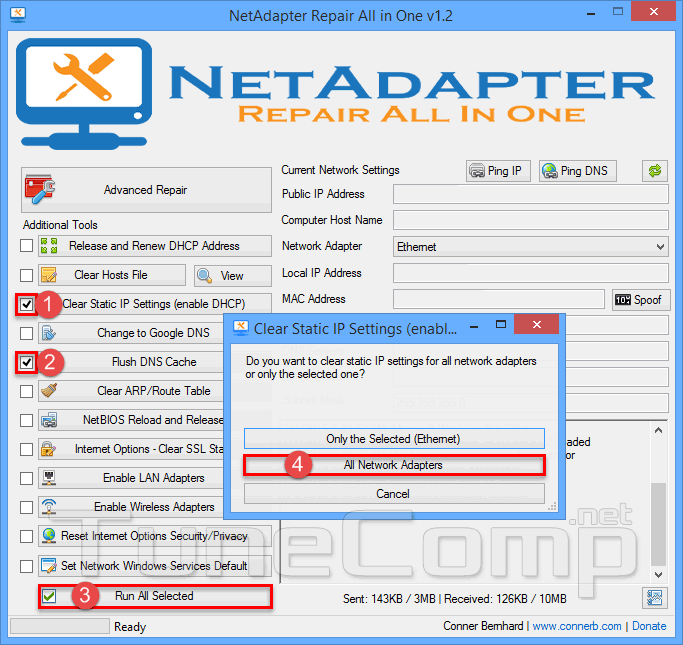
We recommend using NetAdapter Repair tool to quickly restore the network.
You can use NetAdapter Repair utility to fix the DNS settings:
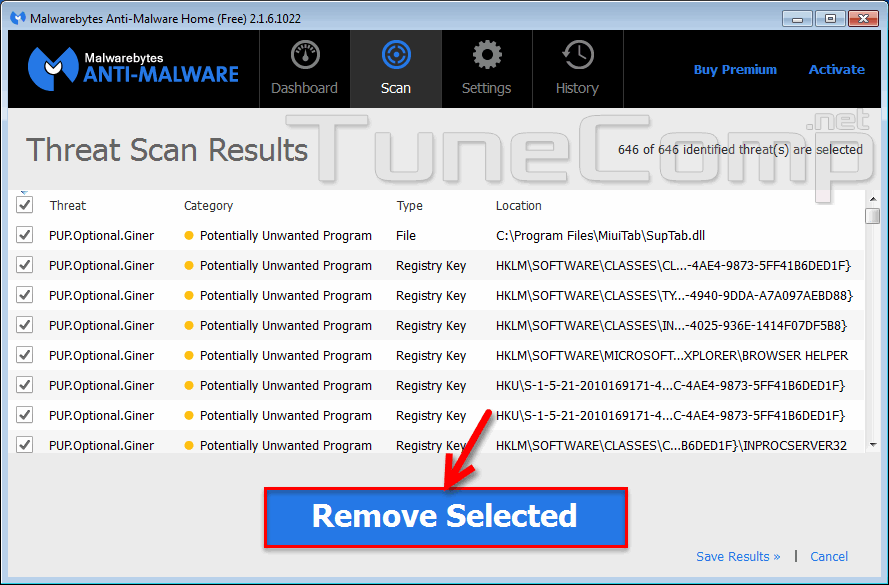
Malwarebytes is a perfect option to start with. Often it is capable of removing all common malware and adware. Follow our guide to download the program, scan your system and remove all found malicious items:
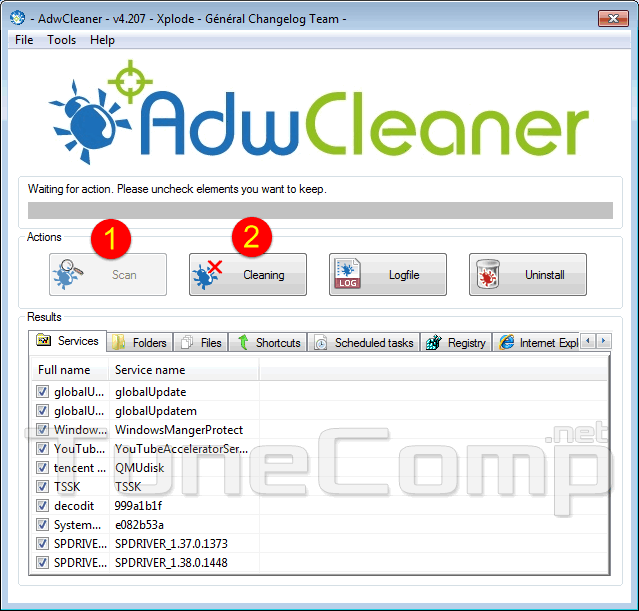
This utility is very easy to use. It is able to remove adware and unwanted apps automatically.
Detailed instruction: //tunecomp.net/adwcleaner/
Use 30-day trial version of program to detect and remove a vast variety of harmful software
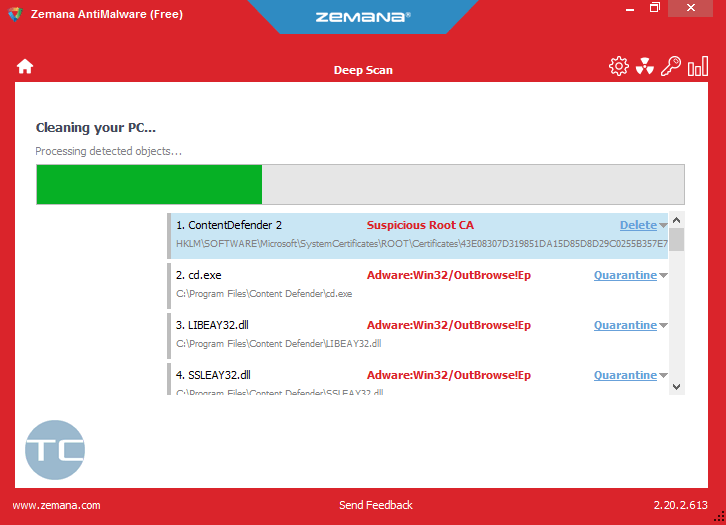
Read our full guide on how to install and remove ads using ZemanaAntiMalware.
Hopefully our guide will help you to completely get rid of adware in browsers, remove all unwanted software from your computer and clean all its traces like installers, modified shortcuts and registry keys.
This website uses cookies.
Read More