How to speed up Windows 10 and make your PC work faster? The problem of low performance will never disappear. New operating systems emerge, laptops and desktops get old, a lot of malware attacks from the Internet and besides that users are able to slow down their machines by themselves.
There are a lot of factors that are able to affect system performance and stability. And here are our tips on how to speed up Windows 10 on a desktop or a laptop.
Upgrade Your Hardware
If you want Windows 10 to work fast, it is strongly recommended to have:
- at least 8GB of RAM. I think, even 16GB of RAM won’t be too much.
- SSD as your system drive instead of HDD. The thing is Windows 10 is designed to work with SSD. Forget about classic HDD when it comes to choosing the drive for installing the operating system onto.
- consider installing a more powerful CPU. I recommend Core i5 or Core i7.
These are the basic requirements your PC should meet.
Disablе visual effects to speed up Windows 10
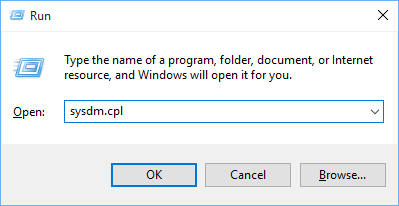
- Press Win+R
- type sysdm.cpl
- press Enter
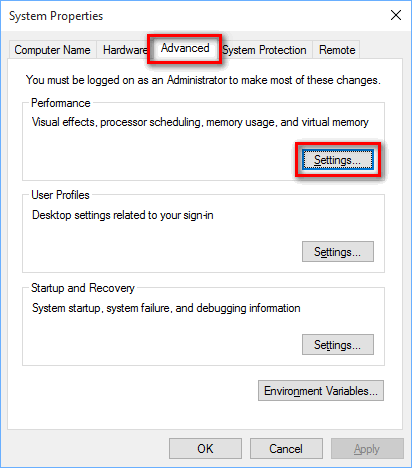
- go to Advanced tab
- press Settings
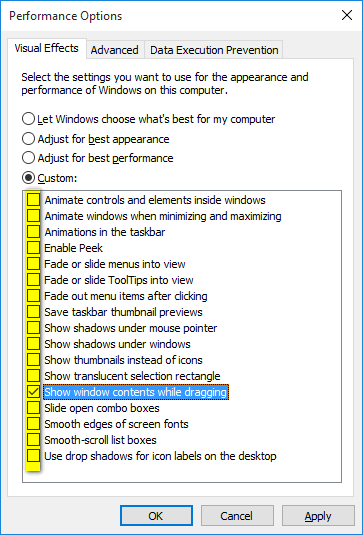
- Make sure to disable Animate windows when minimizing and maximizing. The more flags you uncheck – the faster your PC will work. It is also recommended to disable shadows, fading and sliding effects:
Disable transparency
Right-click the desktop.
Select Personalize:
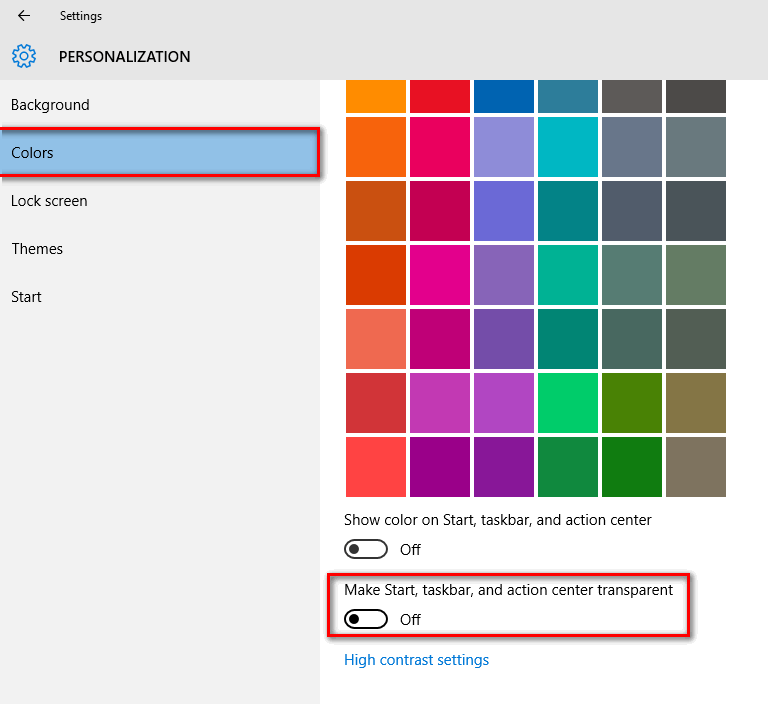
Click on Colors.
Set Make start, taskbar and action center transparent switch to Off:
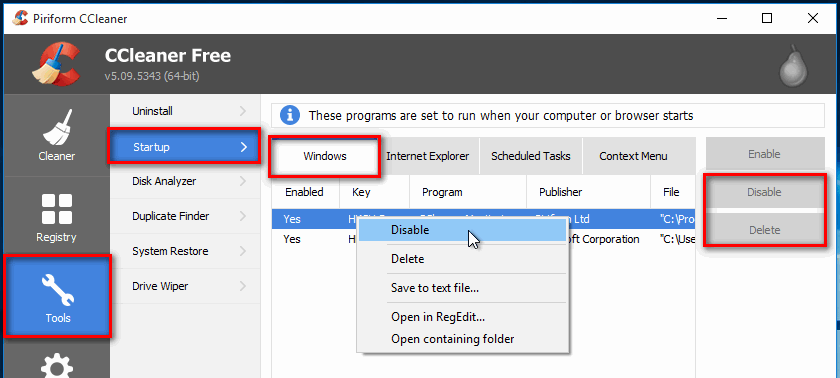
Remove unnecessary startup entries
It is very easy to manage the startup items with CCleaner.
But you can disable startup items using the task manager as well:
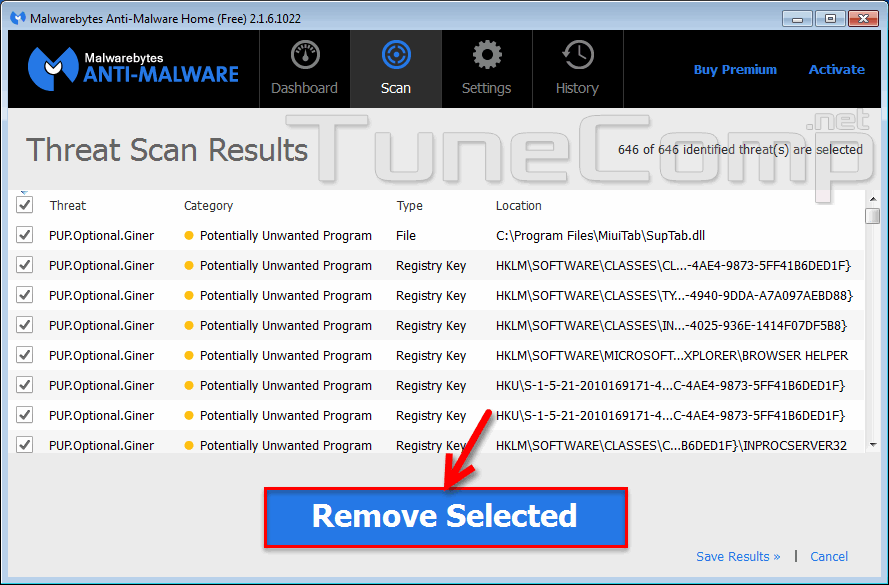
Remove malware and viruses
Scan your system with Anti-Malware and AdwCleaner and delete all found malware and crapware.
If you have something to add, feel free to drop a comment.
Adam Swift Adam is a real tech maniac. He likes to spend time testing phones, tablets, laptops, as well as any other technical devices, and write practical manuals on their functions. He often sleeps all day, but always works at night. Adam bought his first computer in 1999, being an absolute beginner who never held a computer mouse in his hands. He began to study Windows, constantly experimented and often crashed the operating system. But six months later, he was able to reinstall Windows 98 from a scratch on his own, fix almost any software problem on a PC, he also did hardware upgrades and realized that computers, operating systems and programs are now his biggest passion. In addition, Adam has always been a big lover of phones. With the advent of smartphones with Android OS, he began to pick at them much more than in computers. Now Adam loves to study privacy issues in instant messengers, blocking unwanted calls and other nuances related to privacy and security on the network. You can follow him on Twitter: https://twitter.com/tunecomp