Here is how to rollback Windows 10 to the state it was is before using a previously created restore point.
This may be very helpful in case if want to undo certain system changes that are causing issues. For instance, you can roll back your Windows 10 to the previous state after installing a faulty driver or update that makes OS work unstable.
But note, that you need to do two things before you will be able to roll your system back: enable the system protection (yes, it is disabled by default which is weird) and create a restore point in advance, when your system works fine.
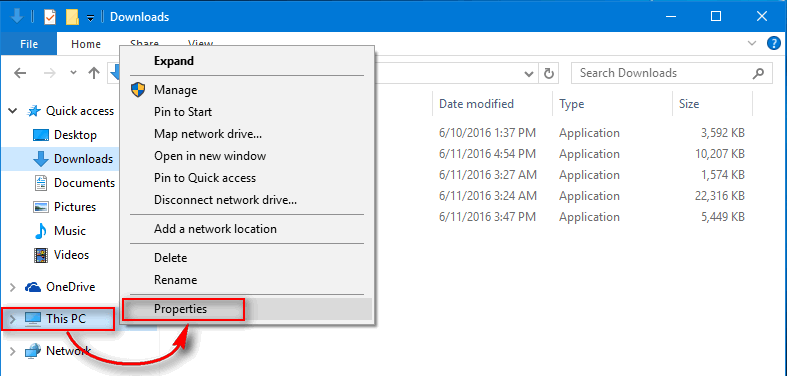
Step 1. Go to “System”
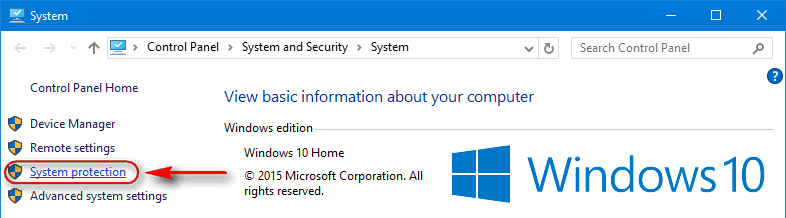
Step 2. Click “System protection”
Step 3. Click “System Restore”
Step 4. Select “Choose a different restore point” and click “Next” :
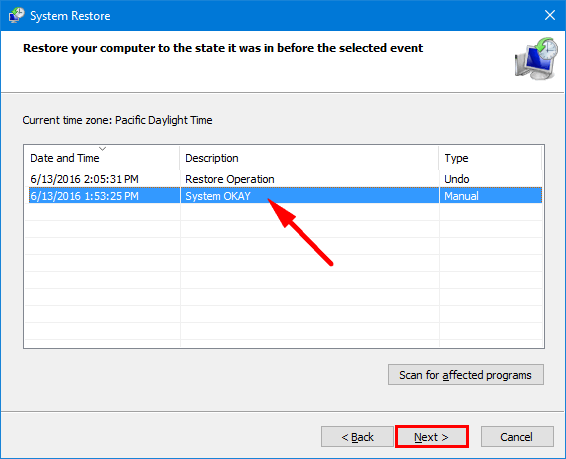
Step 5. Choose desired restore point paying attention to date and time of its creation. Then click “Next” :
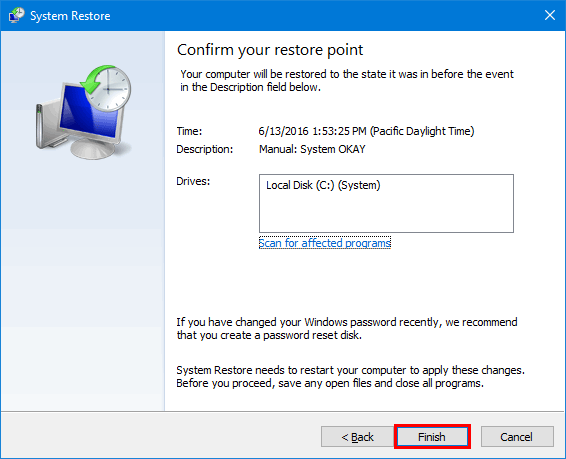
Step 6. Click “Finish” to confirm your restore point:
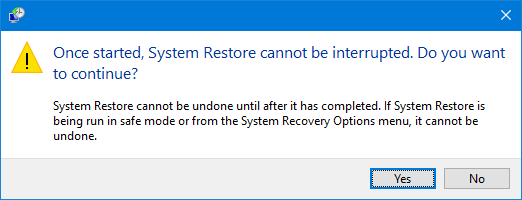
Step 7. Click “Yes” to start rolling back:
Wait… You PC is about to reboot soon:
Wait while your Windows files and settings are being rolled back:
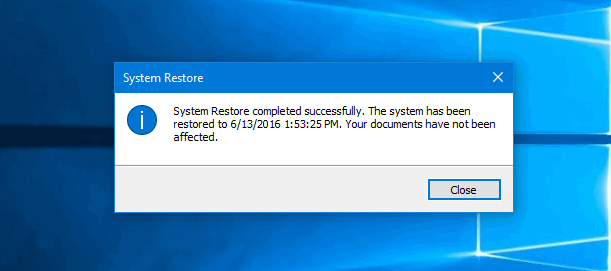
In a few minutes you should see the following message “System Restore completed successfully. The system has been restored to date time. Your documents have not been affected”.
You can click “Close” and start using your PC in a well-working condition:
We hope, this guide helped you master this useful feature. Please, share your feedback in the comments!
This website uses cookies.
Read More