Windows 10

How to remove Microsoft account from Windows 10

For various reasons you may want to remove Microsoft account after you used it on your PC. We offer a guide on how to do it correctly. The issue is you won’t be able to delete the Microsoft account until it is the only user on the current computer.

How to remove Microsoft account from Windows 10

1. Create a new local user (read our detailed guide):

Change the type to Administrator:

2. Sign out of your Microsoft account. And then sign in to the local user:

3. After you’re logged in as a local admin, go to Settings:

then select Accounts:

Go to Family & other users tab.

Click on the user you wish to delete and press Remove:

Click Delete account and data:

How to Do the Same in Control Panel

Go to the Control Panel:

Switch to Small icons view and click on User Accounts:

Click Manage another account:

Select the user you want to remove:

Click on Delete the account:

Press Delete Files button:

Click on Delete Account:

How to completely delete your information from Microsoft servers

Go to website: https://account.live.com/closeaccount.aspx

Authorize using your email and password:

(After that you are to confirm your identity via SMS or email. We won’t show that image, cause it is clear.)

Here click Next:

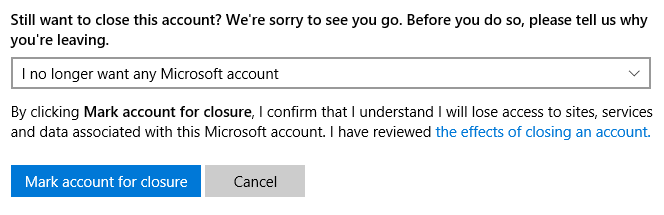
Set all the check boxes, select I no longer want any Microsoft account and click on Mark to closure:

Click Done on the next page. It will be deleted in 60 days.

Please, tell us in the comments whether or not this guide helped you solve your problem. Thank and have a nice day!

Adam Swift

Adam is a real tech maniac. He likes to spend time testing phones, tablets, laptops, as well as any other technical devices, and write practical manuals on their functions. He often sleeps all day, but always works at night. Adam bought his first computer in 1999, being an absolute beginner who never held a computer mouse in his hands. He began to study Windows, constantly experimented and often crashed the operating system. But six months later, he was able to reinstall Windows 98 from a scratch on his own, fix almost any software problem on a PC, he also did hardware upgrades and realized that computers, operating systems and programs are now his biggest passion. In addition, Adam has always been a big lover of phones. With the advent of smartphones with Android OS, he began to pick at them much more than in computers. Now Adam loves to study privacy issues in instant messengers, blocking unwanted calls and other nuances related to privacy and security on the network. You can follow him on Twitter: https://twitter.com/tunecomp

Published by
Adam Swift

This website uses cookies.

Read More