Networking

No-IP dynamic DNS: How to register a hostname and use it on your router

Almost all routers allow to assign a fixed hostname and domain name to a dynamic Internet IP address. After that you would be able to access the router remotely from anywhere. Here is how to create a free hostname at No-IP and set it up on your router. 

How to create a free hostname at No-IP

STEP 1. Go to the official website of No-IP: https://noip.com

STEP 2. Register.

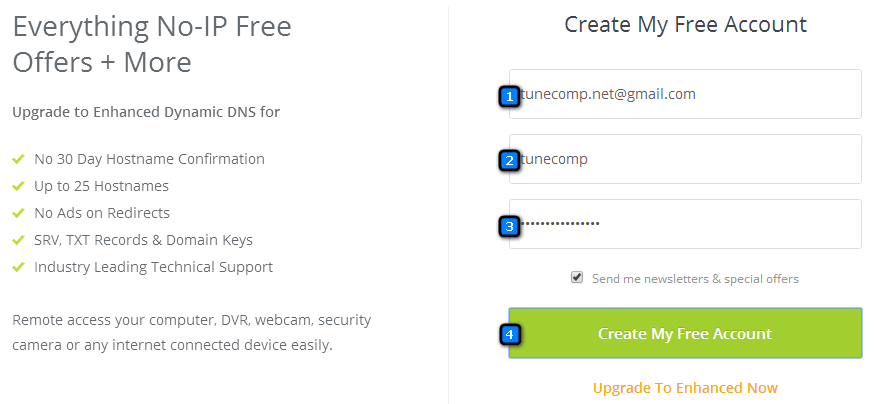
Enter your email, create login, password and press Create My Free Account:

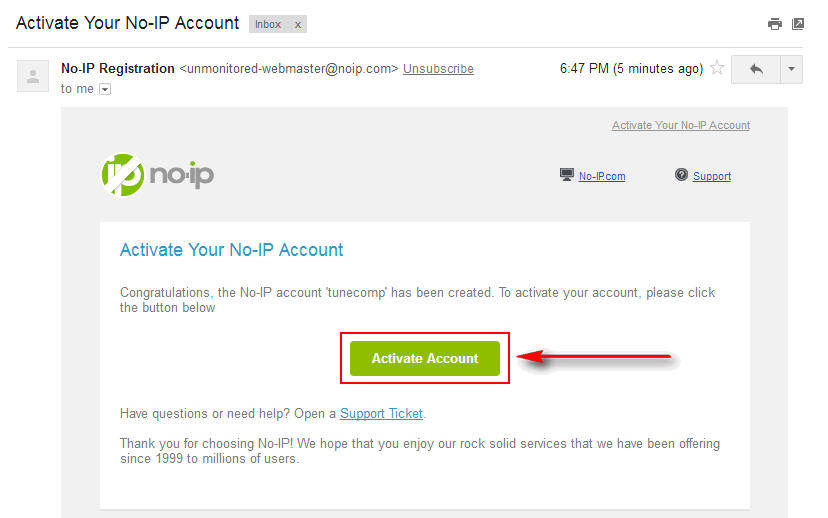
STEP 3. Check your mailbox and verify your account:

Click on Activate Account

STEP 4. Click on Create a Hostname Now:

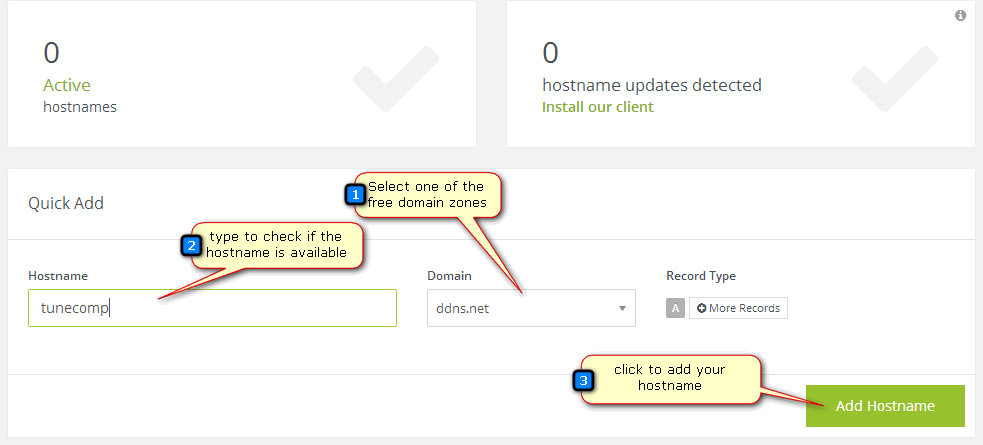
STEP 5. Register a hostname

Select one of free domain zones.
Pick up a name.
Click Add hostname:

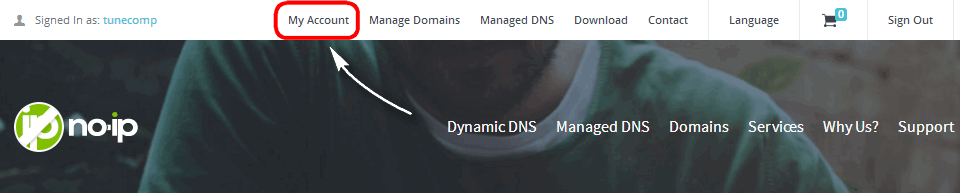
Note! If you want to change these settings, for example add or delete a hostname, click on My Account

… and then click on Dynamic DNS:

How to bind No-IP hostname to your router

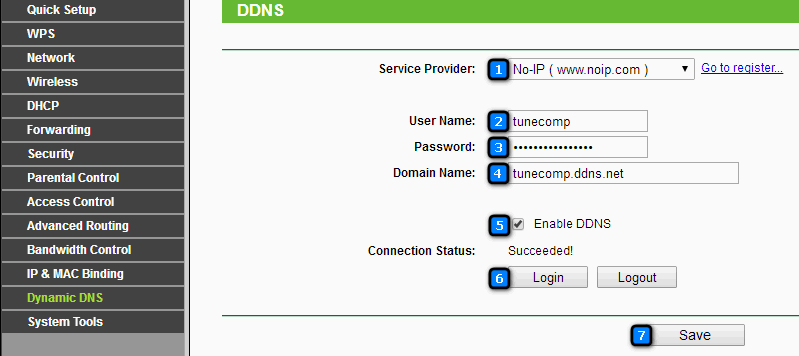
Go to your router’s web interface and set up dynamic DNS using your newly created account and a domain name:

The only thing left to do is to check everything.

Launch command prompt.
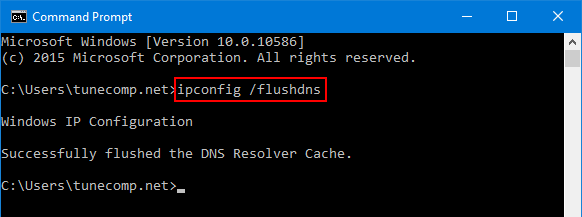
Delete the DNS cache using ipconfig /flushdns command:

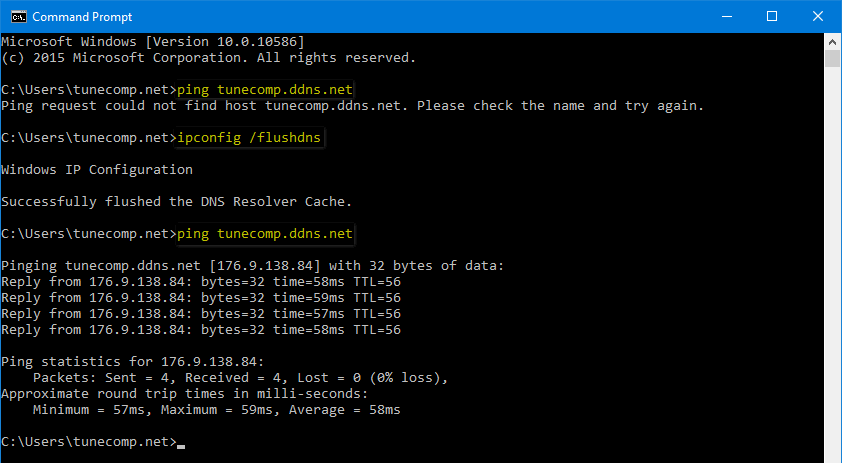
Ping your hostname:

Test your No-IP host

If the DNS server does not resolve the IP correctly wait for a minute, delete DNS cache once more and check again (see the image above).

You may want to read how to access your router remotely.

Adam Swift

Adam is a real tech maniac. He likes to spend time testing phones, tablets, laptops, as well as any other technical devices, and write practical manuals on their functions. He often sleeps all day, but always works at night. Adam bought his first computer in 1999, being an absolute beginner who never held a computer mouse in his hands. He began to study Windows, constantly experimented and often crashed the operating system. But six months later, he was able to reinstall Windows 98 from a scratch on his own, fix almost any software problem on a PC, he also did hardware upgrades and realized that computers, operating systems and programs are now his biggest passion. In addition, Adam has always been a big lover of phones. With the advent of smartphones with Android OS, he began to pick at them much more than in computers. Now Adam loves to study privacy issues in instant messengers, blocking unwanted calls and other nuances related to privacy and security on the network. You can follow him on Twitter: https://twitter.com/tunecomp

Published by
Adam Swift

This website uses cookies.

Read More