In the latest versions of Chrome or Opera you may only hide icons of particular extensions from the toolbar – not all at once, unfortunately.
Hiding the icons can be very helpful in some situations. For example, if you do not want anybody to know that you prefer changing your IP using ZenMate while working in a public place. Or in case if you just do not want to waste the space on your toolbar for those icons.
Here is how to hide them from the toolbar and how to reveal them back when necessary.
Google Chrome
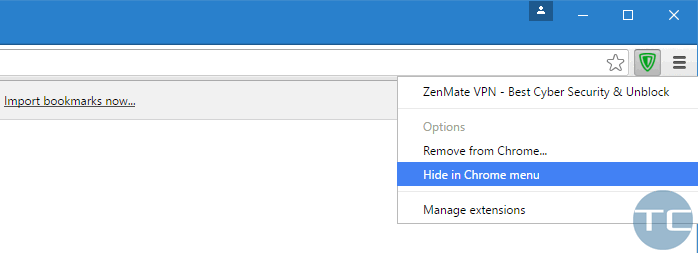
- Right-click on the one you wish to hide.
- Click “Hide in Chrome menu”:
Opera
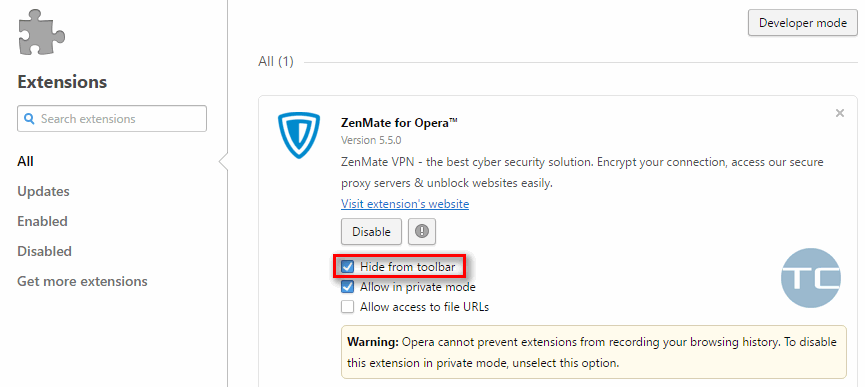
The easiest way is to right-click any extension in the toolbar and select “Manage Extensions”:
(but you can also click “Menu” → “Extensions” → “Manager” or type “opera://extensions” in the address bar and hit “Enter”).
Set the checkbox “Hide from toolbar” for those you wish to vanish from sight:
It’s that simple.
Adam Swift Adam is a real tech maniac. He likes to spend time testing phones, tablets, laptops, as well as any other technical devices, and write practical manuals on their functions. He often sleeps all day, but always works at night. Adam bought his first computer in 1999, being an absolute beginner who never held a computer mouse in his hands. He began to study Windows, constantly experimented and often crashed the operating system. But six months later, he was able to reinstall Windows 98 from a scratch on his own, fix almost any software problem on a PC, he also did hardware upgrades and realized that computers, operating systems and programs are now his biggest passion. In addition, Adam has always been a big lover of phones. With the advent of smartphones with Android OS, he began to pick at them much more than in computers. Now Adam loves to study privacy issues in instant messengers, blocking unwanted calls and other nuances related to privacy and security on the network. You can follow him on Twitter: https://twitter.com/tunecomp