Contents
It is not so easy to boot into Safe Mode in Windows 10. First of all you need to find it in troubleshooting options. We will try to list all possible ways to enter Safe Mode. Hope you will find a suitable one.
Within the user account press Win+R, type msconfig:
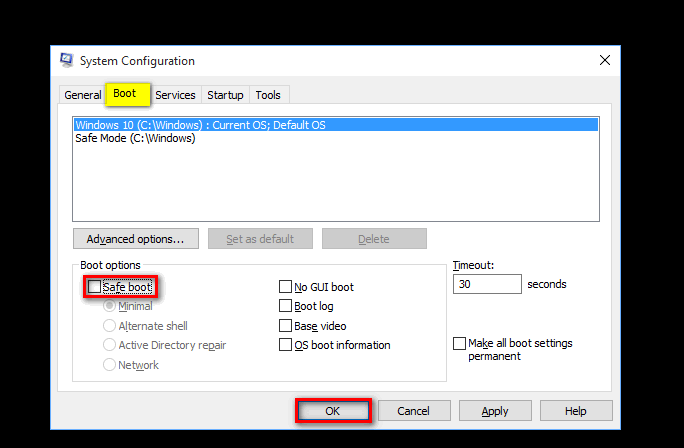
Go to Boot tab and set the checkbox shown below on the screenshot. Ерутб press OK and Restart:
1.This method will make your PC boot directly into Safe Mode.
2.When you need to boot Windows normally launch msconfig again and uncheck the flag.
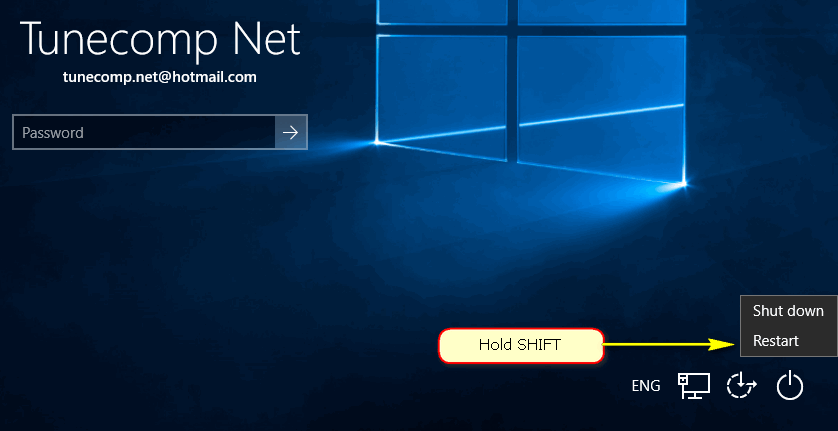
At the login screen hold Shift and press Restart:
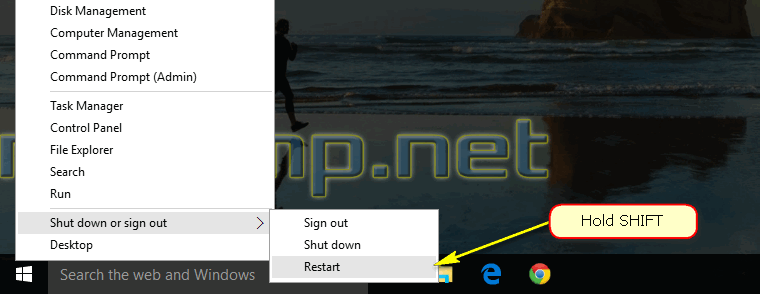
The same can be done within the user account. You can hold Shift and press Restart:
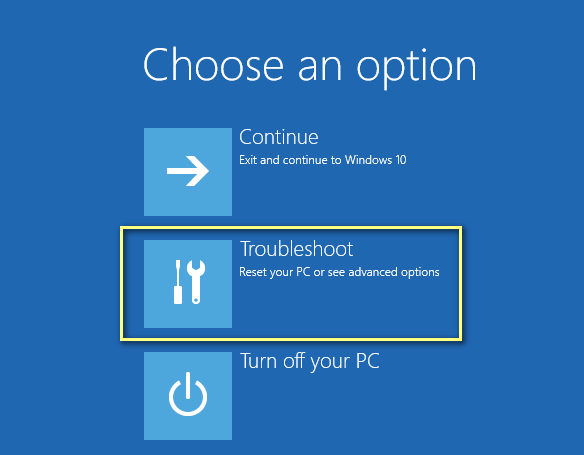
The PC will restart. Here select:
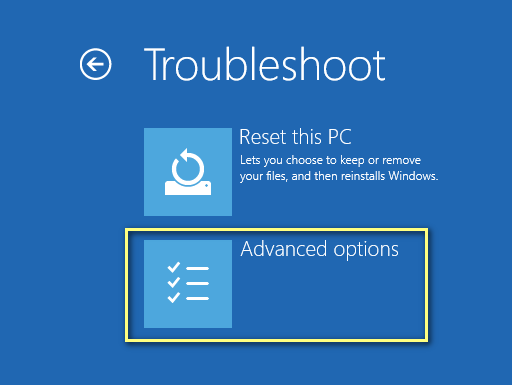
Troubleshoot:
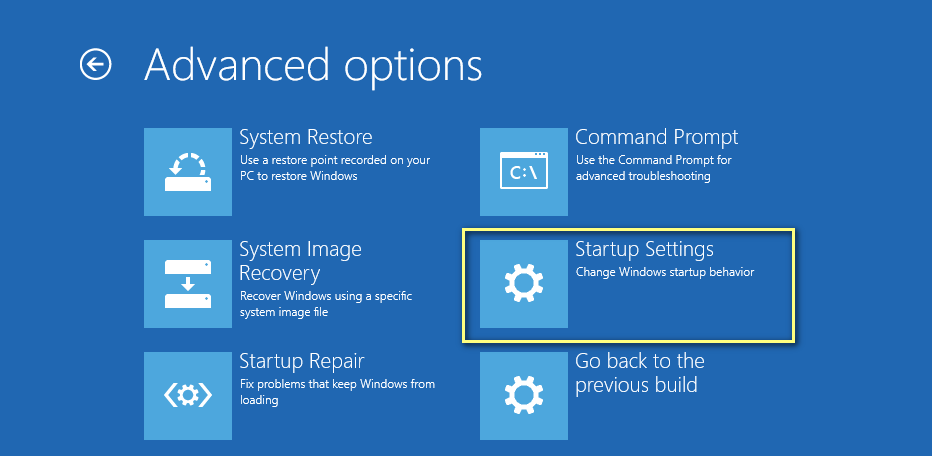
Advanced options:
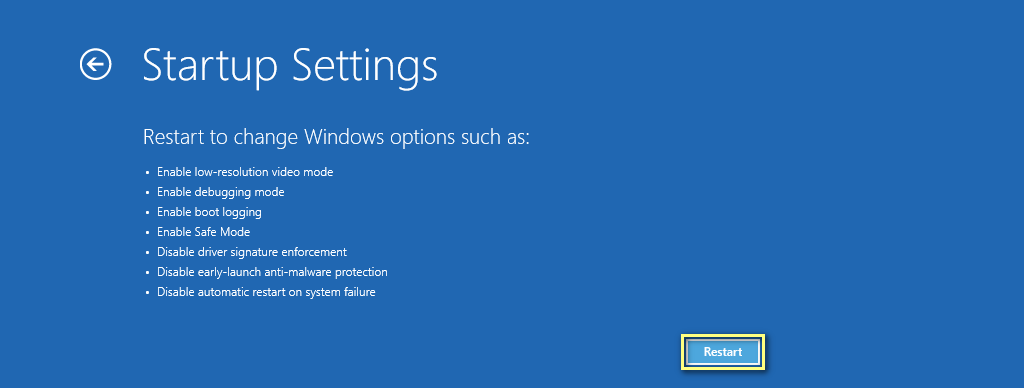
Startup settings:
Press Restart button:
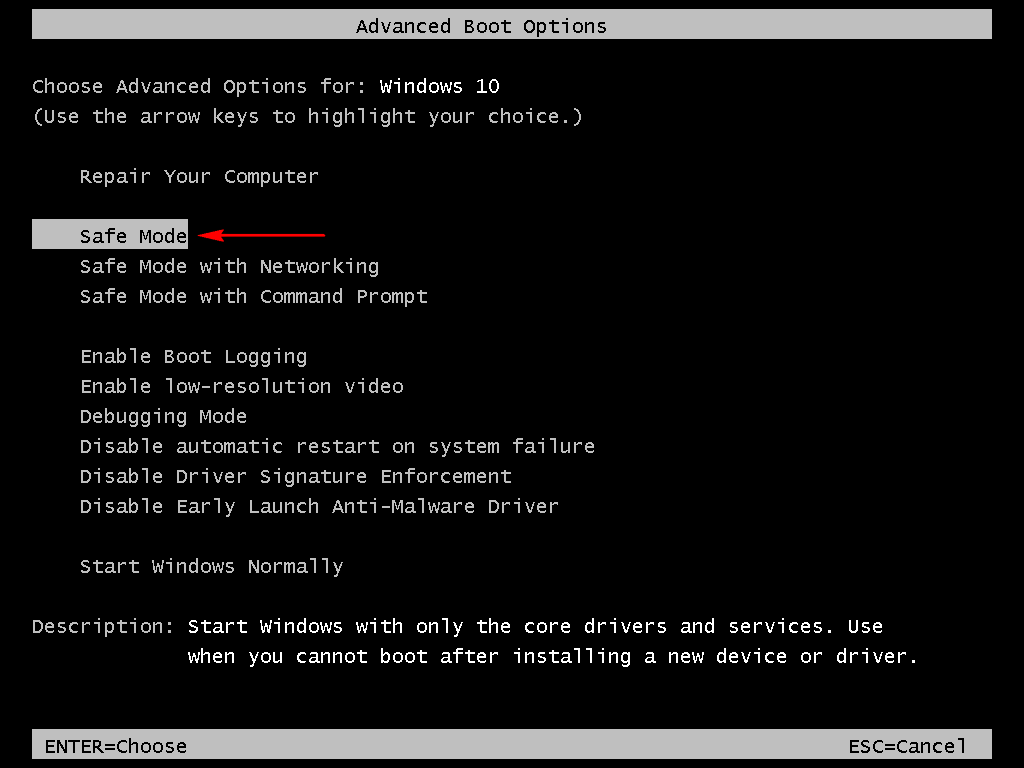
Select Safe Mode:
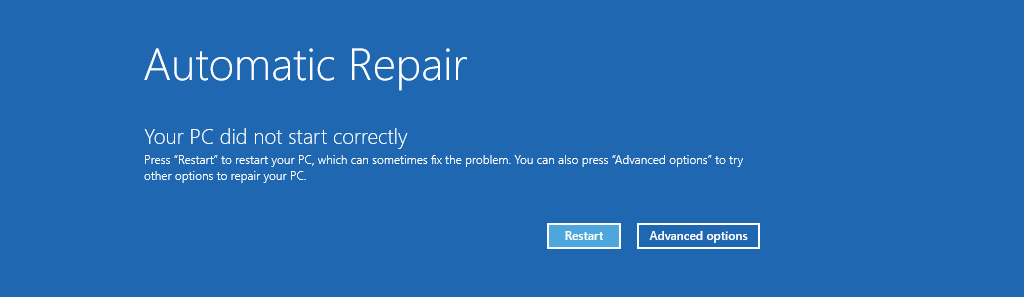
Very often the Recovery screen appears automatically if Windows failed to boot previous time. Hopefully it would work in your case. Here you are to press See advanced repair options and follow instructions from the previous section:
You can create a bootable flash drive using Microsoft Media Creation tool.
All you need to do is:
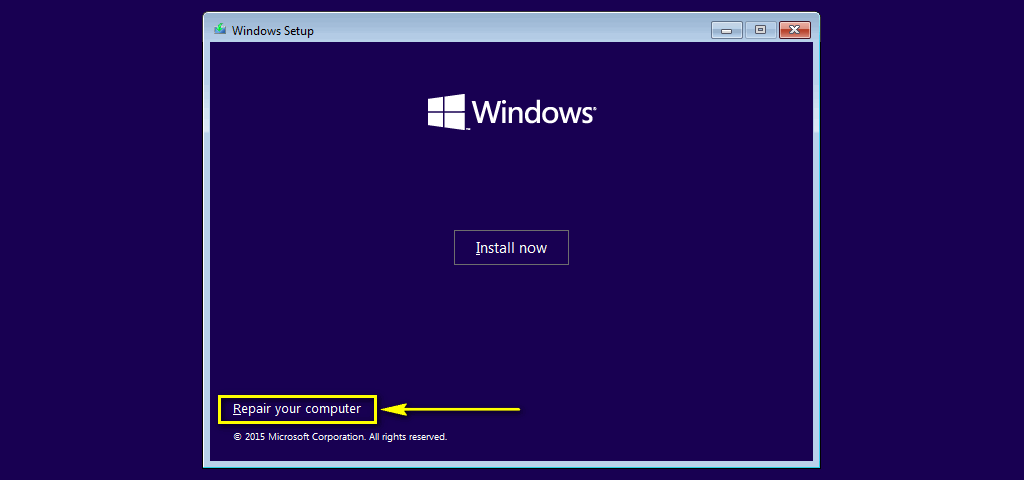
1. Boot PC from USB.
2. Click on Repair your computer:
3. Select Troubleshoot.
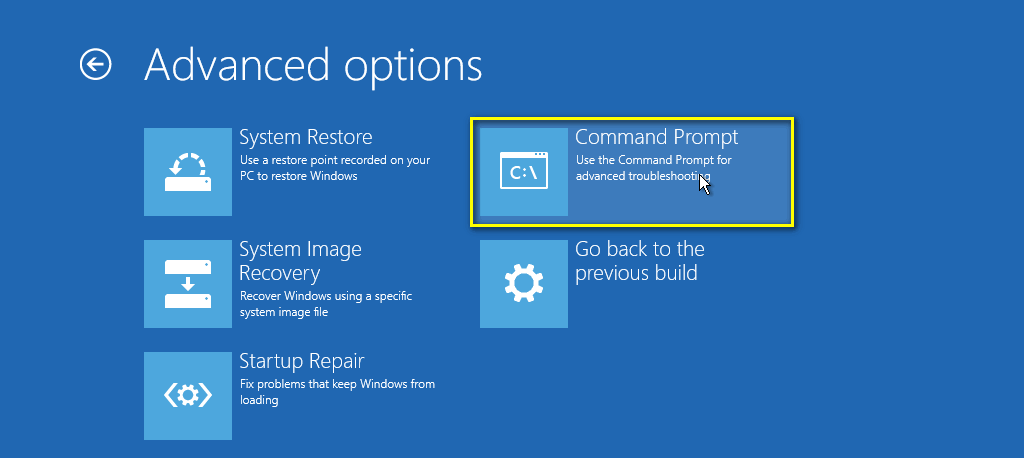
4. Advanced options.
5. Select Command prompt.
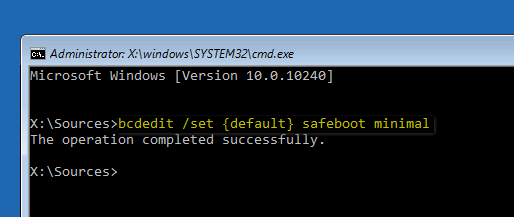
6. Type:
bcdedit /set {default} safeboot minimal
or
bcdedit /set {default} safeboot network for Safe Mode with networking support.
7. Reboot.
PC will boot into Safe Mode.
For normal boot you need to uncheck the flag:
or run command prompt as admin and type:
bcdedit /deletevalue {default} safeboot
If you use this method you will be able to select Safe Mode at any time when your PC boots up.
1. Run command prompt as admin (how to).
2. Type
bcdedit /copy {current} /d “Safe Mode”
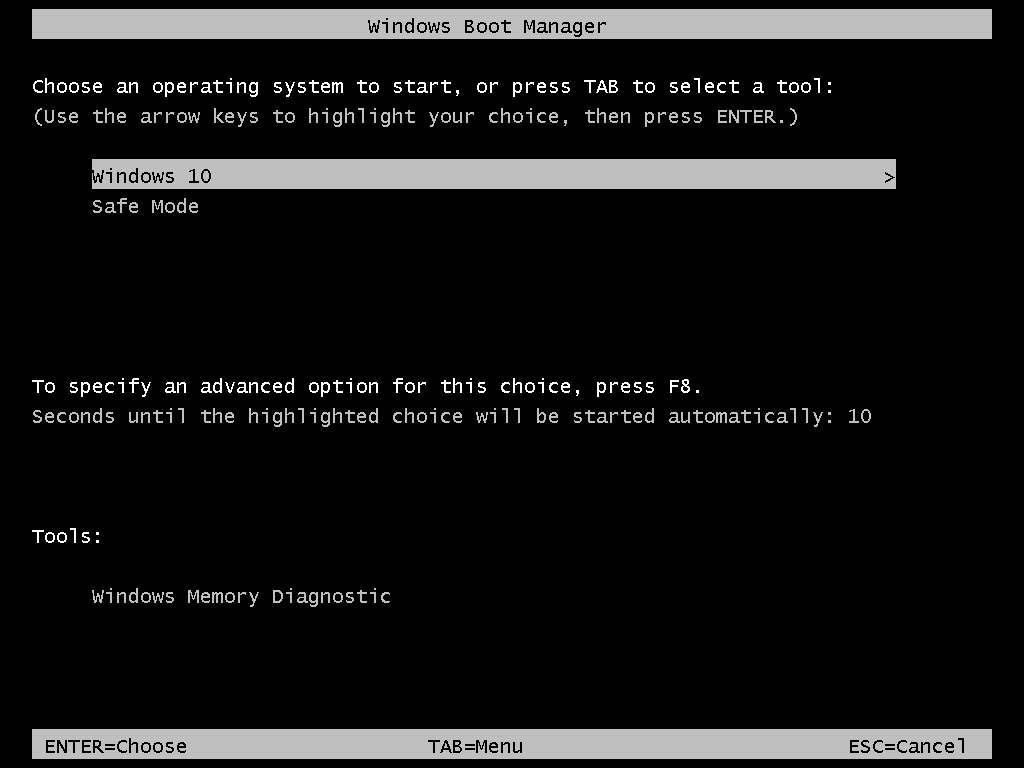
From this moment you will have a choice whether to start Windows 10 normally or boot into Safe Mode:
Thanks for reading.
This website uses cookies.
Read More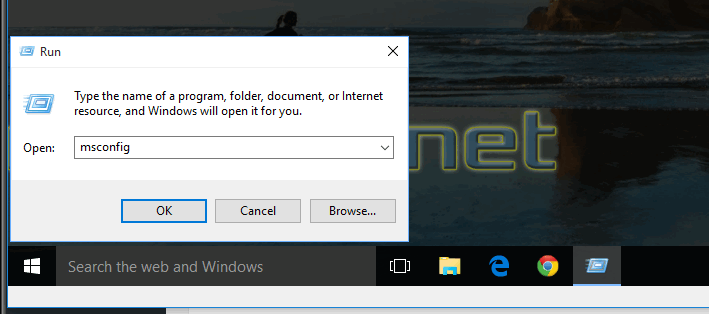



View Comments
thank you but my other computer will not do this have tried
will not go into safe mode will not even do any thing but says bad system code think will just give away but thanks for the vidio they help us old people.