Contents
When you connect to a wireless network your PC saves its credentials. But you may want to delete the information about unnecessary and insecure networks from computer.
It was very simple to forget a wifi network from GUI in Windows 7 and XP. But this feature is missing from Windows 8.
Today we will show you the easiest ways to delete a Wi-Fi hotspot profile in Windows 10 and 8.1 using GUI and command line.
It is quite important to clear unwanted profiles to prevent your laptop from automatically connecting to insecure or vulnerable hotspots.
You should remember that hotspots protected with vulnerable security modes (WEP, WPA) represent a horrible danger to your banking credentials and personal data. Open Wi-Fi networks are out of the questions.
We strongly recommend that you never connect to such hotspots because the traffic is not encrypted at all and anyone can use a sniffer program to steal your sensitive data such as login credentials.
Option 1 – The Best way to forget Wi-Fi network and delete its profile
If you have Fall Creators Update installed you can use this simple method to delete a hotspot:
Option 2 – for old builds (before Fall Creators Update)
This is a common option that will work on all builds and editions on Windows 10.
Click on the Wi-Fi icon in the Taskbar and select Network and Internet settings:
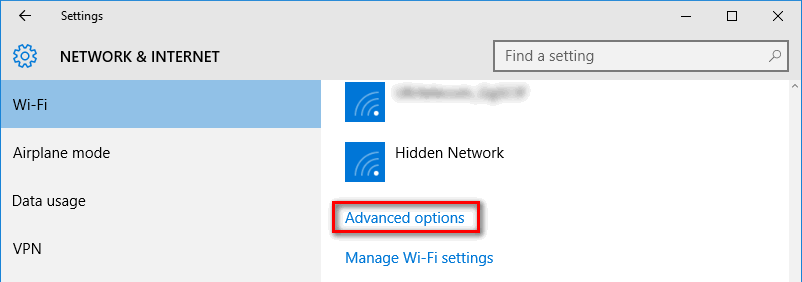
Click on Advanced options link:
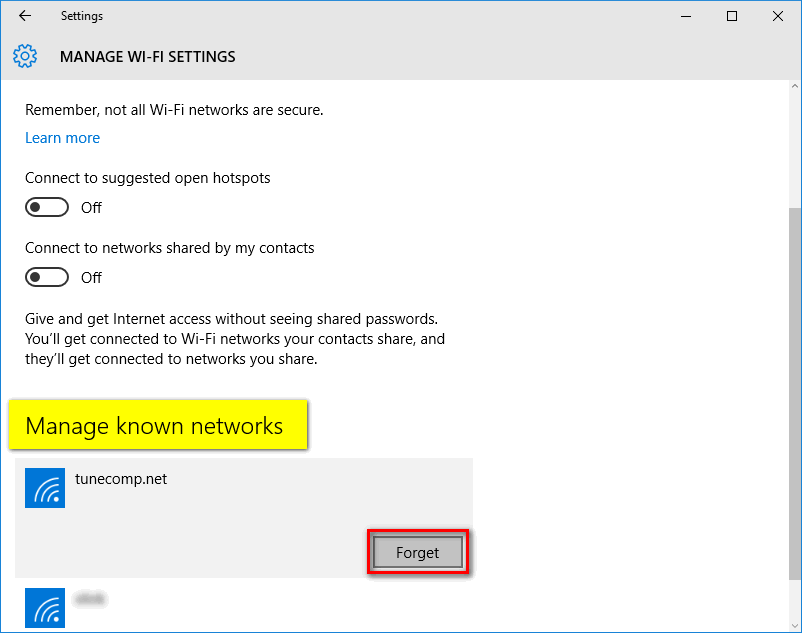
Here you will find Manage known networks area.
Select the wireless network profile you wish to delete.
Press Forget:
This method works for both Windows 8 and Windows 10. But in Windows 8 (8.1) this is the only way to delete wireless hotspot’s profile.
Right click the Start.
Select Command Prompt:
Type
netsh wlan show profiles
Press Enter.
Type
netsh wlan delete profile <SSID>
Press Enter:
This will remove all Wi-Fi profiles from your PC. You will have to enter a network security key for every wireless network you wish to connect.
Type
netsh wlan delete profile *
Press Enter:
That’s it!
This website uses cookies.
Read More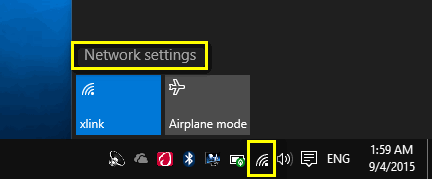


View Comments
Thanks a lot!
How can I “un-forget” a connection? I inadvertently “forget” my iPhone’s hotspot and I’m not able to re-activate it.
As far as I remember, there is no such possibility.