Interruptions is a very useful feature on Android. It allows you to restrict notifications such as calls, messages and reminders. You can specify which events will bother you and which ones will be muted.
The most useful thing is to learn how to set up priority interruptions only in silent mode. In other words allow vibration notifications from your most important (or priority) contacts only.
This works for Android 7 Nougat, Android 6 Marshmallow as well as for CyanogenMod 12 and 13.
Configure Which Interruptions are the Priority Ones
- Pull down the Status Bar.
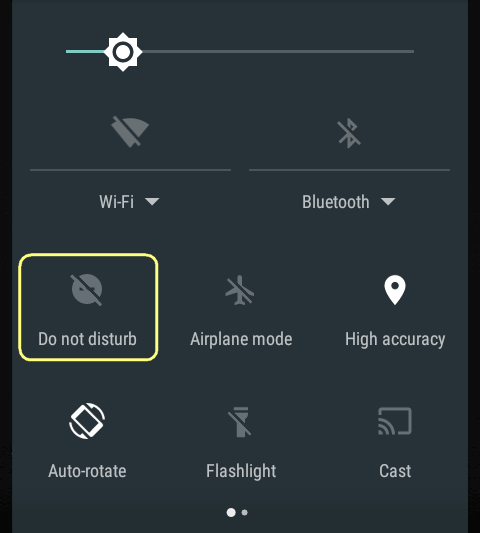
- Tap and hold down Do Not Disturb:
- Tap on Priority only allows.
- Define which interruptions will have priority. In most cases will be useful to select calls and messages from starred contacts only:
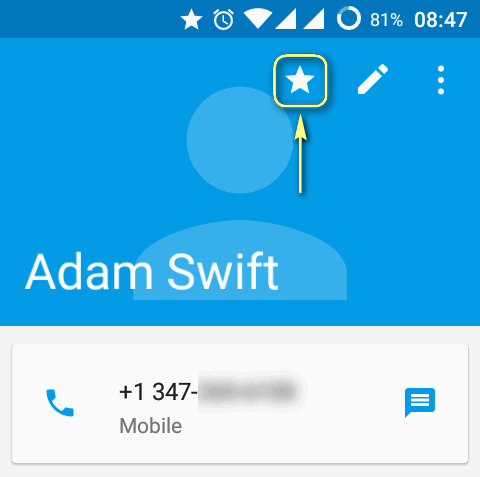
- If you have selected Starred contacts only just add important contacts to the Starred group in Google Contacts:
If you have selected Contacts only just add the person to your contact list and since that time he or she will be able to call you or send a message in Priority mode.
How to allow only priority interruptions in Android 7 Nougat
- Pull down the Status Bar.
- Tap on Do Not Disturb tile:
- Select Priority only.
- Select the duration (Until you turn this off, for a definite period of time, until the next alarm).
- Tap Done:
How to quickly allow Priority Interruptions Only in silent mode
Here is how to allow calls and messages from the favorite contacts in silent mode.
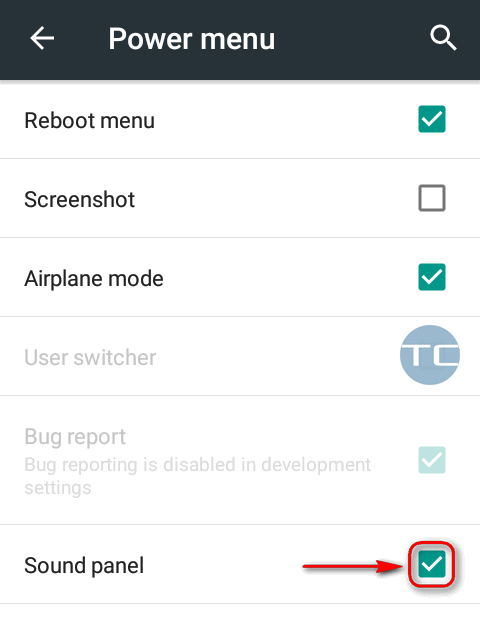
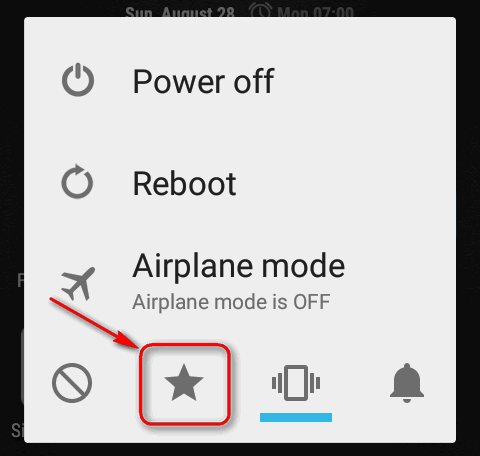
First go to Settings ⇒ Buttons (in the Device section) ⇒ Power Menu (in Power Button section). Here enable Sound Panel:
Now you can turn on the priority interruptions in silent mode by performing the following steps:
- Press the Power Button.
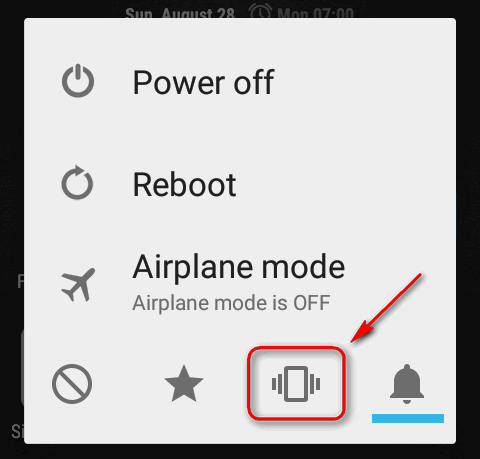
- Select Silent:
- Press the Power Button again.
- Select Priority:
Now you will receive vibration from priority contacts’ calls or SMS. Others will be muted.
How to turn off Do Not Disturb Mode and allow all interruptions with sound
- Press the Volume Up key.
- Adjust the ringtone volume. This will turn off the silent mode.
- Tap on End Now to allow ringtones and notifications from all callers regardless of being Starred or even their presence in the Contacts.
Adam Swift Adam is a real tech maniac. He likes to spend time testing phones, tablets, laptops, as well as any other technical devices, and write practical manuals on their functions. He often sleeps all day, but always works at night. Adam bought his first computer in 1999, being an absolute beginner who never held a computer mouse in his hands. He began to study Windows, constantly experimented and often crashed the operating system. But six months later, he was able to reinstall Windows 98 from a scratch on his own, fix almost any software problem on a PC, he also did hardware upgrades and realized that computers, operating systems and programs are now his biggest passion. In addition, Adam has always been a big lover of phones. With the advent of smartphones with Android OS, he began to pick at them much more than in computers. Now Adam loves to study privacy issues in instant messengers, blocking unwanted calls and other nuances related to privacy and security on the network. You can follow him on Twitter: https://twitter.com/tunecomp



View Comments
Your image in no. 4 under “configure which interruptions are priority ..” is exactly as mine: the alarms is activated and grayed out. For me, even though I have set rule to total silence, alarms ring through. Why is this option grayed out? More importantly, how to disable alarms?
This means that alarm is the thing that cannot be muted. If you don't want it to ring disable the alarm.