The users in Windows 10 officially are unable to refuse from downloading and installing system updates because such option disappeared. But there are two simple ways to disable automatic updates in Windows 10.
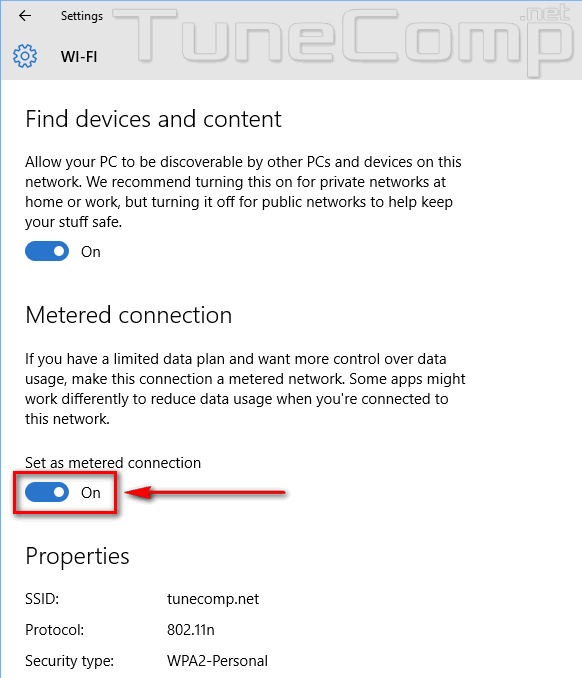
Switch to metered connection
Here is the option #1 to prevent Windows 10 from from downloading updates. In this guide we wrote how to enable it.
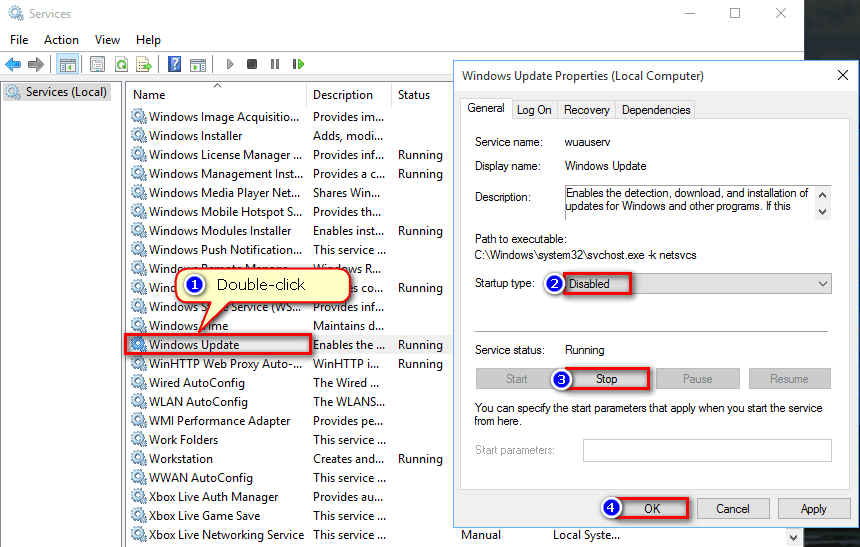
Stop wuauserv service
Here is yet another way to do the same by stopping the service. Follow the steps:
Press Win+R.
Type services.msc.
Press Enter or OK:
Double-click the Windows update service.
In Startup type select Manual.
Stop the service.
Press OK:
This is how it should look like:
Now go to the Log on tab,
Switch the selector to This account.
Click Browse: Click Advanced,
Then – Find now.
Now select the Guest account in the list.
And click OK in each window:
From now on the update service won’t be able to start because of insufficient privileges.
Thanks for reading. Your feedback in the comments is appreciated!
Adam Swift Adam is a real tech maniac. He likes to spend time testing phones, tablets, laptops, as well as any other technical devices, and write practical manuals on their functions. He often sleeps all day, but always works at night. Adam bought his first computer in 1999, being an absolute beginner who never held a computer mouse in his hands. He began to study Windows, constantly experimented and often crashed the operating system. But six months later, he was able to reinstall Windows 98 from a scratch on his own, fix almost any software problem on a PC, he also did hardware upgrades and realized that computers, operating systems and programs are now his biggest passion. In addition, Adam has always been a big lover of phones. With the advent of smartphones with Android OS, he began to pick at them much more than in computers. Now Adam loves to study privacy issues in instant messengers, blocking unwanted calls and other nuances related to privacy and security on the network. You can follow him on Twitter: https://twitter.com/tunecomp