The question: I need to configure my router, but I do not have neither laptop nor desktop PC at the moment – only my Galaxy S7 smartphone. The phone is connected to my wireless network, obtains an IP and Internet is working well.
So the first thing I need to do is find the IP address of my router to be able to log in to the web interface. Could you please tell me how to find the router’s IP address on Android?
This article will be especially helpful if your router has a non-default IP address.
How to find the IP address of your router on Android without third-party apps
Android 8.1 (Google Pixel)
Open the “Settings” app:
Go to “Network & Internet“:
Select “Wi-Fi“:
Tap on the Wireless Network’s name you are connected to now:
Current Wi-Fi network on Android 8
Here is all the information related to the current network connection is provided. Among other you can find the item named Gateway with the corresponding IP address. This is exactly your router’s IP:
Network Info Android 8.1
Android 7 (Galaxy Tab A6 2016)
Open “Settings“.
Select “Connections“.
Tap on your Wi-Fi network’s name:
Here you will see “Manage router“. Once you tap the URL you will be prompted to launch the browser and be taken right to router’s settings page:
Android 5
This method was tested on Samsung Galaxy Ace III with Android 4 and Samsung Galaxy S4 with Android 5.0.1. But it doesn’t work on other devices running the same OS.
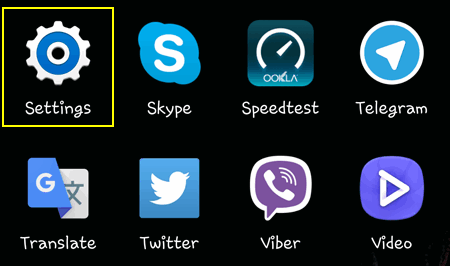
Go to “Settings”:
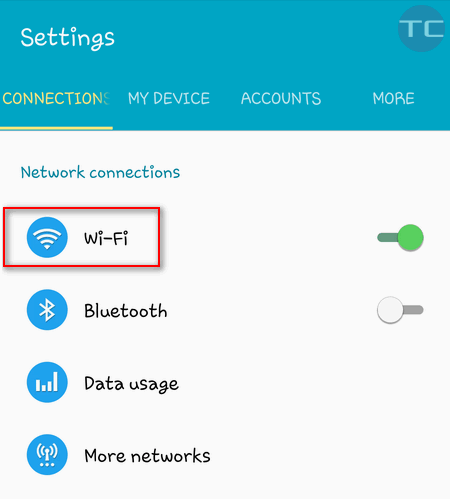
Tap on “Wi-Fi”:
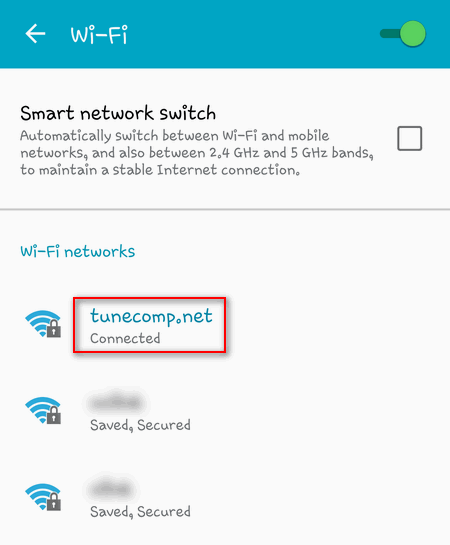
Long tap on your network name:
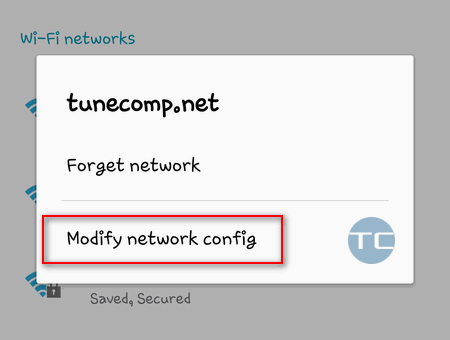
Tap on “Modify network config”:
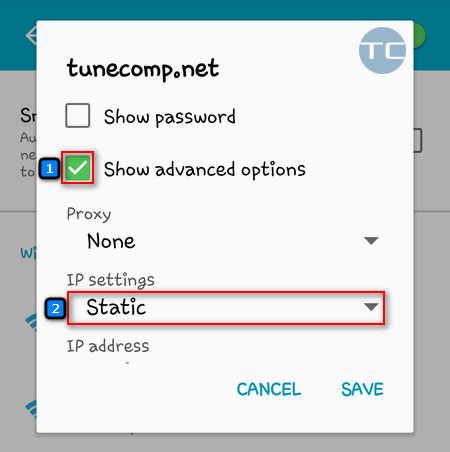
Set the checkbox “Show advanced options”. Switch the “IP settings” to “Static”:
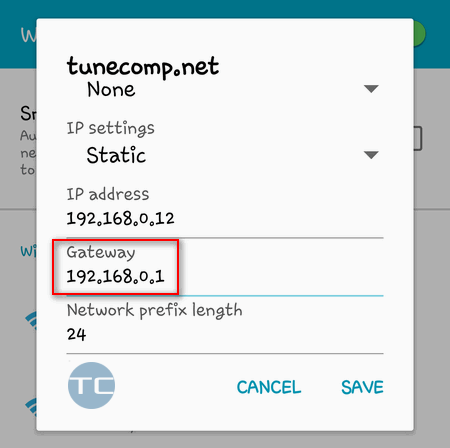
Scroll down to the “Gateway” field. Gateway IP is your router’s IP address:
How to find the router’s IP address on Android using Wi-Fi Analyzer
Wi-Fi Analyzer is an extremely useful app that allows you to check settings and properties of all wireless networks around you, choose the best channel, check signal quality and more. We often recommend using it in our guides. It can help to find your router’s IP address as well. All you need to do is:
Connect to your wireless network.
Launch Wi-Fi Analyzer.
Tap the View menu.
Select AP List.
Tap on your network name on the top of the screen.
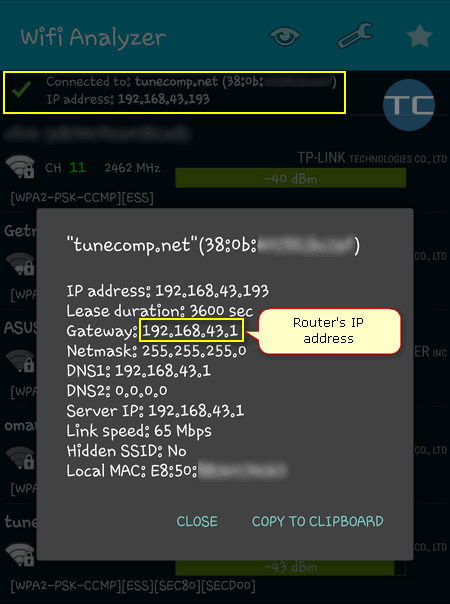
Then you will see a small pop-up window showing information about your wireless network. The gateway IP is your router’s IP:
How to log in to the router’s Web Interface from Android
When you find out the router’s IP address you can log in to its web interface and modify any router’s settings: change wireless security key, encryption, security mode and more. All you need to do is:
Open your mobile browser (e.g. Google Chrome).
Enter //your-router-ip (e.g. //192.168.0.1).
Tap “Go”.
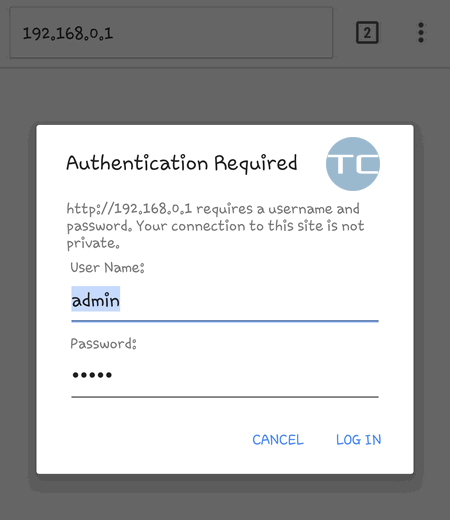
Enter login and password for web-based interface.
Tap “Log In”:
Adam Swift
Adam is a real tech maniac. He likes to spend time testing phones, tablets, laptops, as well as any other technical devices, and write practical manuals on their functions. He often sleeps all day, but always works at night. Adam bought his first computer in 1999, being an absolute beginner who never held a computer mouse in his hands. He began to study Windows, constantly experimented and often crashed the operating system. But six months later, he was able to reinstall Windows 98 from a scratch on his own, fix almost any software problem on a PC, he also did hardware upgrades and realized that computers, operating systems and programs are now his biggest passion. In addition, Adam has always been a big lover of phones. With the advent of smartphones with Android OS, he began to pick at them much more than in computers. Now Adam loves to study privacy issues in instant messengers, blocking unwanted calls and other nuances related to privacy and security on the network. You can follow him on Twitter: https://twitter.com/tunecomp
I have 2 devices hardwired into the powerline tplink av500 working great (macbook pro & sky box). The 2wifis coming up on my phone relating to the tplink are named - the one I changed the name for on the router - jinnymillar before installing the tplink and the second is called the original name of this router i.e. Virgin+number & I know its signal is coming from the wifi on the tplink as its so strong. The original router (jinnycole) wifi signal works but is too far away and the one that is brilliantly strong keeps saying on the phone (Samsung 5) authentication error.
Its a bit of a nuisance as I have to move out of my office with my phone to use the original router signal... hope that makes sense. Please help.
wrrrr, when I tap wifi name there is only popup with qr code to share password :/
Oh, yes... if you have a Xiaomi phone, you should tap on the arrow icon on the right (at the very end of the line).
So really midway got 6000 ip address huh how is that
Please after locating the IP address, how do I view my cctv camera on Android, its installed with DVR "accessking" and I have a router
View Comments
I have 2 devices hardwired into the powerline tplink av500 working great (macbook pro & sky box). The 2wifis coming up on my phone relating to the tplink are named - the one I changed the name for on the router - jinnymillar before installing the tplink and the second is called the original name of this router i.e. Virgin+number & I know its signal is coming from the wifi on the tplink as its so strong. The original router (jinnycole) wifi signal works but is too far away and the one that is brilliantly strong keeps saying on the phone (Samsung 5) authentication error.
Its a bit of a nuisance as I have to move out of my office with my phone to use the original router signal... hope that makes sense. Please help.
wrrrr, when I tap wifi name there is only popup with qr code to share password :/
Oh, yes... if you have a Xiaomi phone, you should tap on the arrow icon on the right (at the very end of the line).
So really midway got 6000 ip address huh how is that
Please after locating the IP address, how do I view my cctv camera on Android, its installed with DVR "accessking" and I have a router