The problem: the default search engine in Chrome is locked with a message:
This setting is enforced by your administrator
In most cases you will see an unknown website assigned as your default search and there will be no button to change it. Only this icon:
Here is how to unblock the settings in Chrome and finally change the default search in your browser.
The notification This setting is enforced by your administrator appears if the default search engine setting is restricted by the group policy. So all you you need to do is remove this policy. Follow the steps:
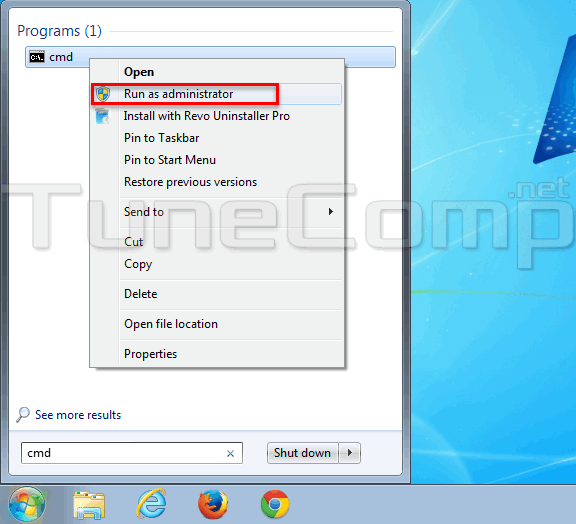
Step 1. Run the command prompt as administrator:
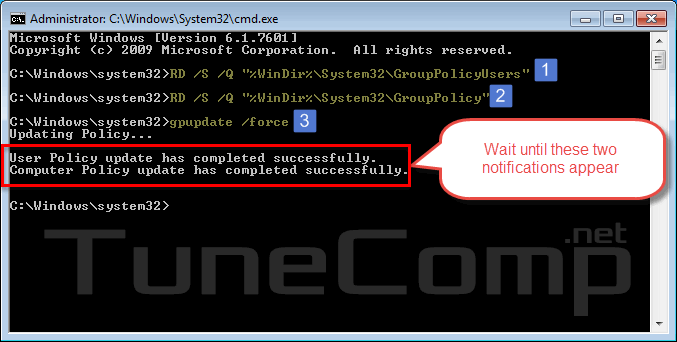
Step 2. Paste each of three strings into console and press Enter:
RD /S /Q "%WinDir%\System32\GroupPolicyUsers"
RD /S /Q "%WinDir%\System32\GroupPolicy"
gpupdate /force
Wait until two notifications appear:
User Policy update has completed successfully.
Computer Policy update has completed successfully.
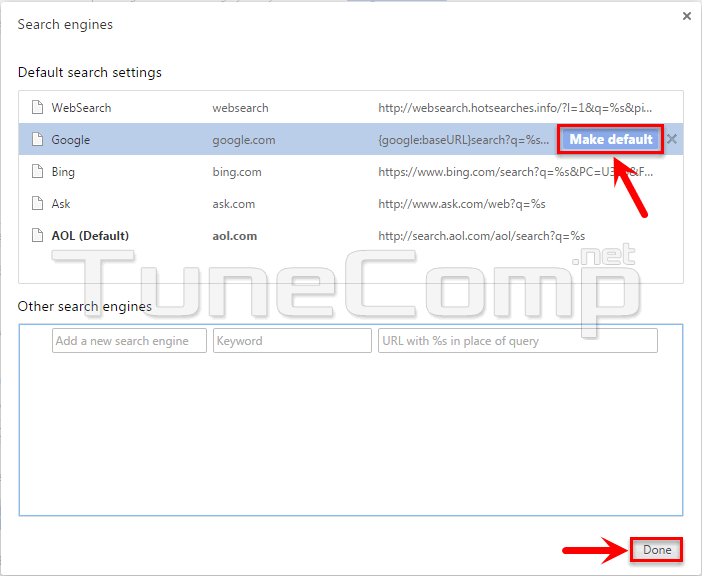
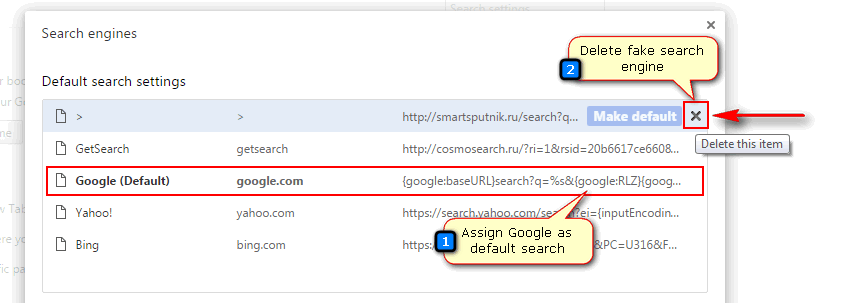
Step 3. After that you can close the command promt window and try to change the default search engine in Chrome. Click “Make Default” to assign Google as your default search:
Step 4. Delete the unwanted (or fake) search engine from the list:
This website uses cookies.
Read More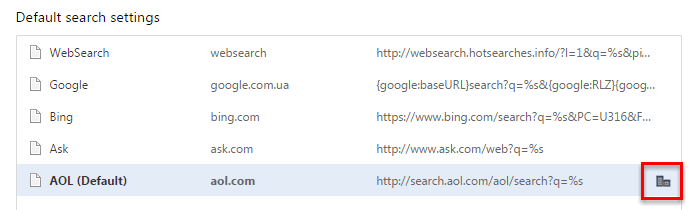
View Comments
Worked for me !!
Thanks.
Thank you so much. It worked for me.
worked, well, thanks
thank you very much , solved my problem by your help
I tried the admin command prompt, and it says "the system cannot find the file specified."
I read through the comments and it said to just put in the 2nd commande, but again it said "the system cannot find the file specified."
So then I came to these instructions from Adam Swift:
"Hi! You can also try the following:
1. navigate to ..\Windows\System32\GroupPolicyUsers\ and ..\Windows\System32\GroupPolicy\ .
2. manually delete all files inside those folders.
3. reboot your PC (or perform 'gpupdate /force' in elevated command prompt).
P.S. if you have x64 Windows try to empty GroupPolicy and GroupPolicyUsers folder in Windows\SysWOW64\ as well."
I tried this, but I do not have a file called "group policy." And to be clear, I DID view hidden files. It just isn't there.
Well, it is really a question. I remember only one very rare case. The default search setting can be blocked in Chrome by another thing. Check this:
Launch regedit.
Go to HKEY_LOCAL_MACHINE\Software\Policies\Google\Chrome\
Ensure that "DefaultSearchProviderEnabled" is "0" and "DefaultSearchProviderSearchUrl" containts empty string.
Restart browser.
If this does not help either, scan for malware using Anti-Malware and AdwCleaner.
Thanks a lot. It worked 100%
Thanks works for me.
its work thank you
As it turned out This setting is enforced by your administrator message was really caused by adware! Thank you for this guide about policy removal!
excellent, its worked for me.
Thank you it worked!
u nailed it man. must say. Thanks