Contents
The browser reset procedure reverts the browser settings to their defaults. It also removes all add-ons and extensions, sets the default search engine and start page. It can help to restore the normal work after adware removal.
It can be very useful to reset your browser if the following situations occur:
Launch Microsoft Internet Explorer.
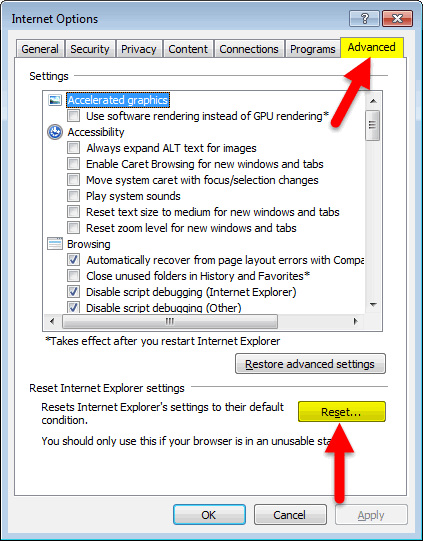
Go to Internet options:
Go to the Advanced tab.
Press Reset button:
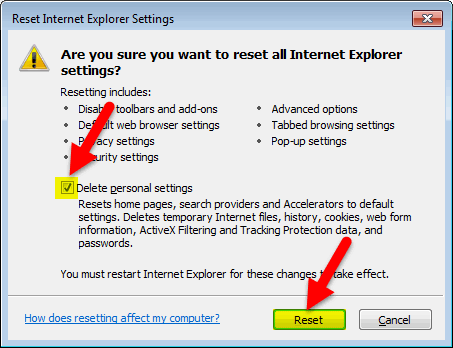
Set the checkbox Delete personal settings.
Click Reset:
Press Close when it is done:
Launch Google Chrome.
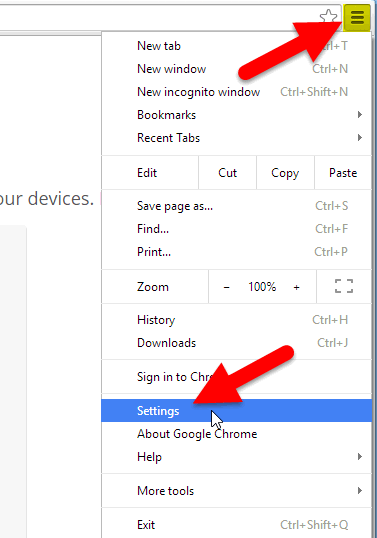
Press Menu button in the upper right.
Select Settings:
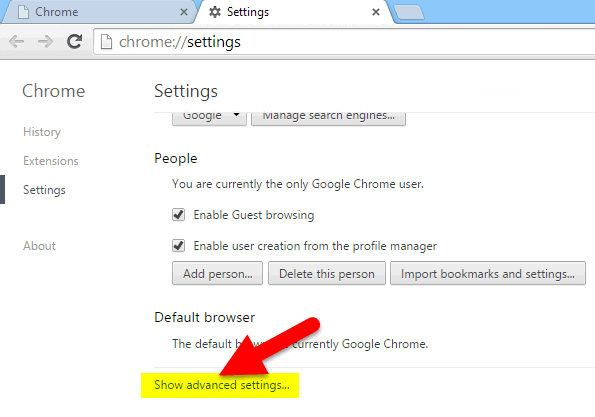
Click on Show advanced settings link:
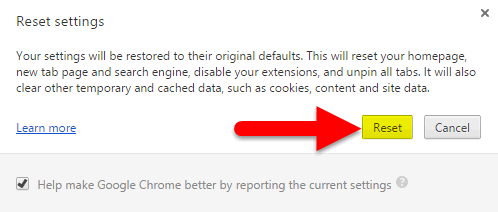
Press Reset settings button:
Press Reset button in a small pop-up window:
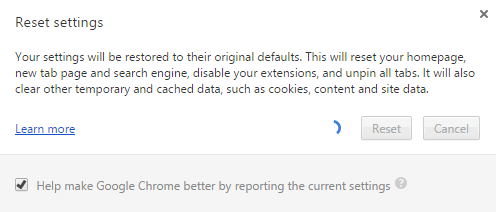
When the following window disappears you are ready to work:
Launch the Mozilla Firefox browser.
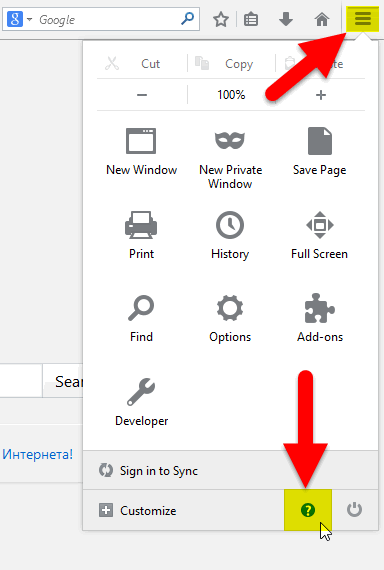
Click the Menu button.
Now click the button with a question mark:
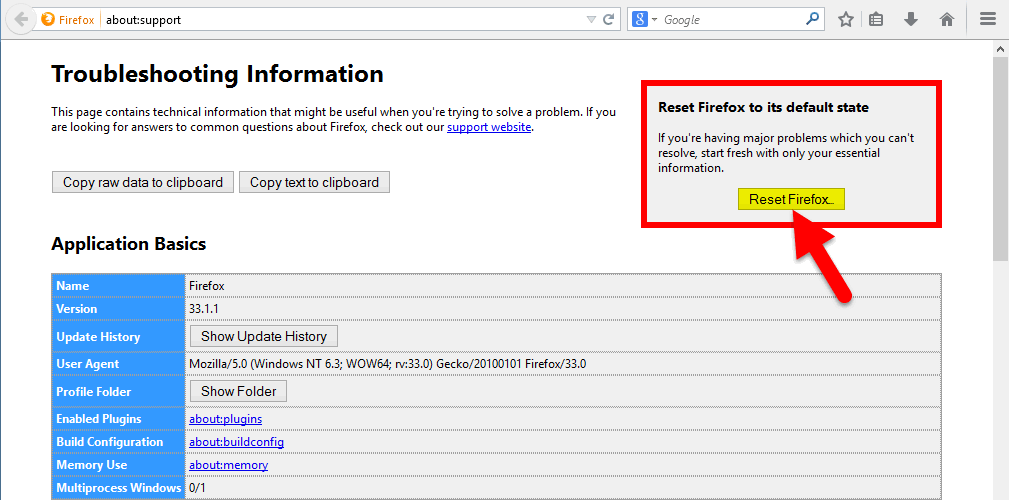
Click on Troubleshooting Information:
Find the Reset Firefox to its default state area on the right.
Click the Reset Firefox button:
Click Reset Firefox in a small pop-up window:
It is a little bit more complicated to restore the default state of Opera browser because it doesn’t have the Reset button.
Launch Opera.
Press Opera button.
Select About Opera:
Copy Profile and Cache addresses and open these two locations in two different explorer windows:
Close the Opera browser!
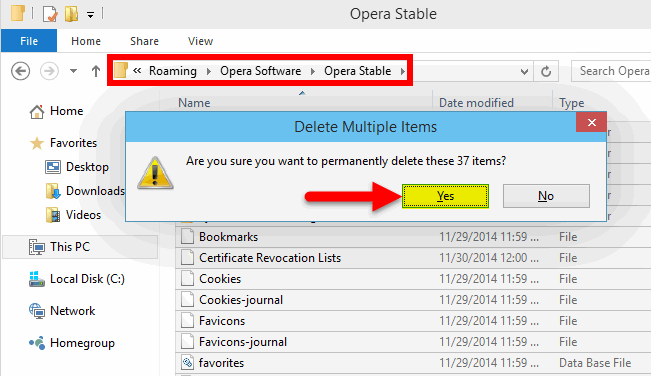
Delete all files and folders in Profile location:
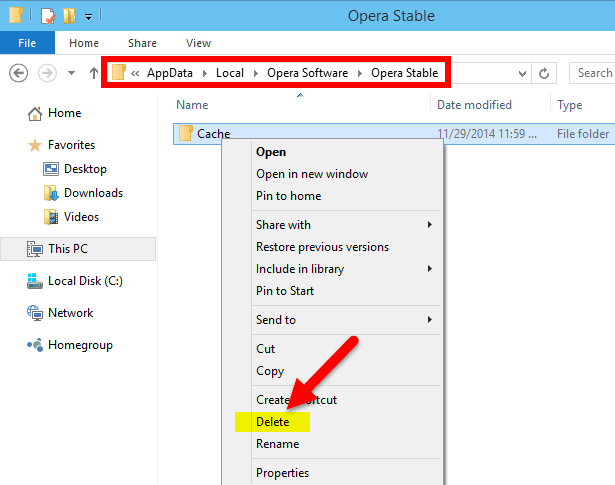
Clean the Cache folder:
Now you know how to revert your browser to its default settings which can solve a lot of problems and speed up the performance. Please, tell us in the comments what issues have you fixed by resetting the browser?
This website uses cookies.
Read More