Some apps can pretend that they are shutting down but in fact they stay active in the background and continue sending data, wasting battery or even showing your status as “online”. That is why you may want to manually stop some processes or services on your Android device.
How to stop a service or a process on a Galaxy Device
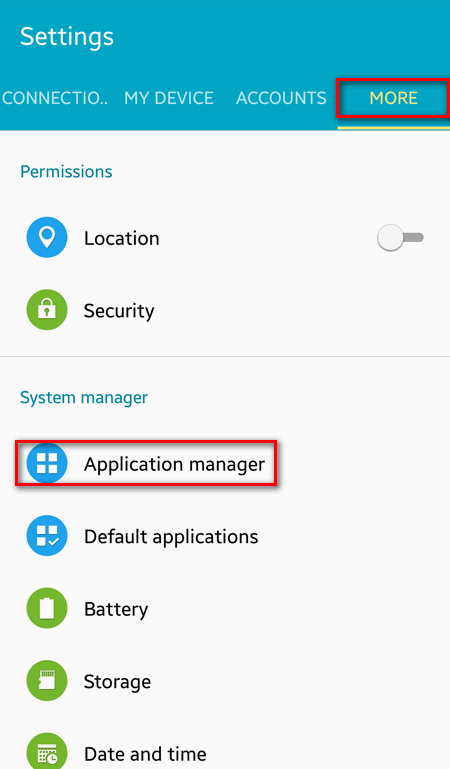
Go to Settings – More – Application Manager.
Select Running tab. (You can also switch between Cached processes and Services in use).
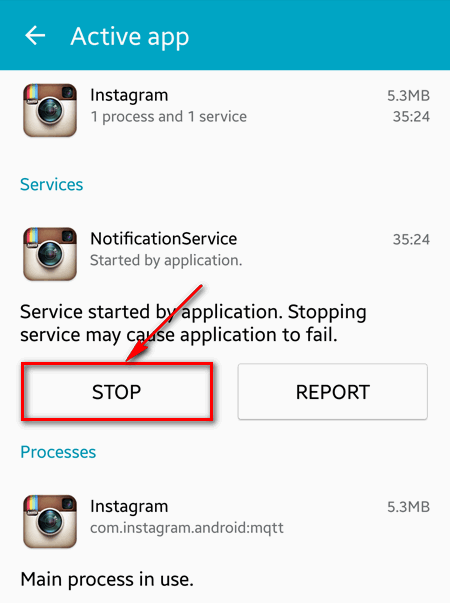
Select a service (or background process) you wish to stop:
Press Stop button:
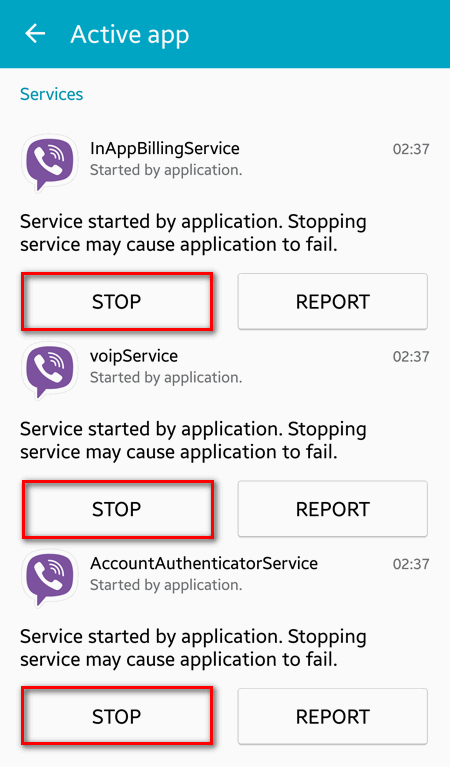
Some services use several processes. So you can stop one or more:
Note! Some processes are able to automatically restart. So it is possible that you notice them running again after a while.
Please, tell us in the comment section whether or not this tutorial was useful for you and why you read it. Thanks for reading!
Adam Swift Adam is a real tech maniac. He likes to spend time testing phones, tablets, laptops, as well as any other technical devices, and write practical manuals on their functions. He often sleeps all day, but always works at night. Adam bought his first computer in 1999, being an absolute beginner who never held a computer mouse in his hands. He began to study Windows, constantly experimented and often crashed the operating system. But six months later, he was able to reinstall Windows 98 from a scratch on his own, fix almost any software problem on a PC, he also did hardware upgrades and realized that computers, operating systems and programs are now his biggest passion. In addition, Adam has always been a big lover of phones. With the advent of smartphones with Android OS, he began to pick at them much more than in computers. Now Adam loves to study privacy issues in instant messengers, blocking unwanted calls and other nuances related to privacy and security on the network. You can follow him on Twitter: https://twitter.com/tunecomp