You wish to translate a part of text of an article but you do not want Chrome to translate the whole web page? Today we will show you a very quick way to translate the selected text in browser (a single word or a phrase).
By the way, how many taps do you perform on your Android device to see the translation of an unknown word on a website?
How to Translate a Word or Phrase on Android
First, install the Google Translate app from the Play Store:
https://play.google.com/store/apps/details?id=com.google.android.apps.translate
Then, follow the steps:
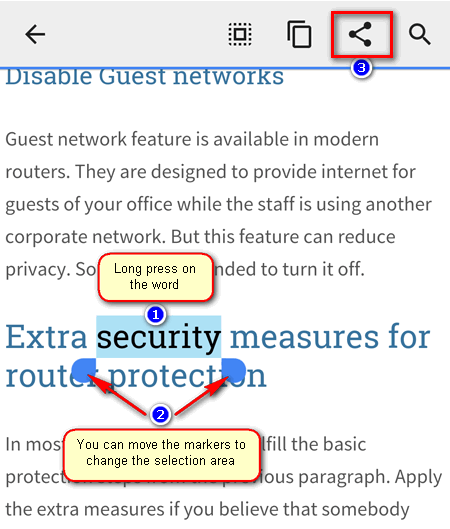
- Long press on the word (not the link). The word will be selected.
- Now you can either edit the selection or leave it as is (in case if you would like to translate the single word).
- In the pop-up menu, tap “Translate”.
If you can’t see such an item, you should first tap the three dots icon to show it.
Now you should be able to see the translation results floating over the app:
Steps for Very Old Devices, Retro Android & App Versions
If you have a very old phone or tablet where you can’t update apps, here are the steps to translate text.
- Select the text in the browser.
- Tap the “Share” button:
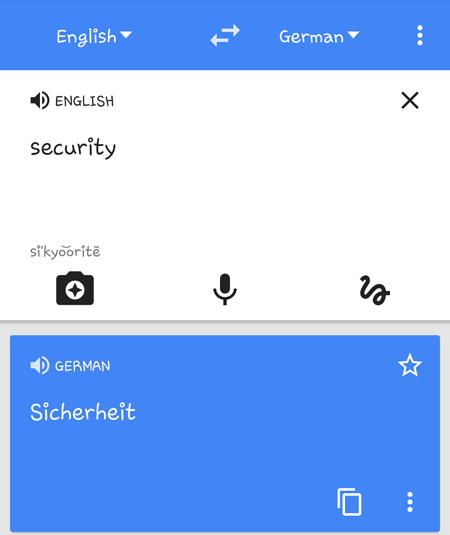
- Select the Google Translate app.
- The text will be translated using current settings of the app. Change the language or direction if you need to translate to or from another language:
How to Make the “Translate” Item Fit in that Pop-Up?
On my Pixel phones everything is fine with the menu. But on other devices I often need to perform the extra tap every time I want to translate a text in a browser. I mean, I need to first tap on three dots and then select “Translate”.
I found a wonky workaround. I enable the Developer options on my Android device and try to gradually increase the “Smallest Width” value until that pop-up fits entirely.
Conclusion
I have this app on my every device because I read a lot of tech news in different languages every day. And I can say, it is awesome!
Each time you find an unknown word or can’t understand a phrase (or even paragraph) in your browser or Google app, just 1) select the text and 2) tap “Translate”. That’s all you need to know.
Adam Swift Adam is a real tech maniac. He likes to spend time testing phones, tablets, laptops, as well as any other technical devices, and write practical manuals on their functions. He often sleeps all day, but always works at night. Adam bought his first computer in 1999, being an absolute beginner who never held a computer mouse in his hands. He began to study Windows, constantly experimented and often crashed the operating system. But six months later, he was able to reinstall Windows 98 from a scratch on his own, fix almost any software problem on a PC, he also did hardware upgrades and realized that computers, operating systems and programs are now his biggest passion. In addition, Adam has always been a big lover of phones. With the advent of smartphones with Android OS, he began to pick at them much more than in computers. Now Adam loves to study privacy issues in instant messengers, blocking unwanted calls and other nuances related to privacy and security on the network. You can follow him on Twitter: https://twitter.com/tunecomp