Windows 10

All Sorts of Ways to Open Windows 10 Settings

The Settings app is a new interface that is about to replace the old Control Panel in Windows 10 in the nearest future (we hope, that by 2030 this will happen). In this article we collected all possible methods to open Windows 10 Settings – from easy to complicated ones. In different situations you may need to use one of them.

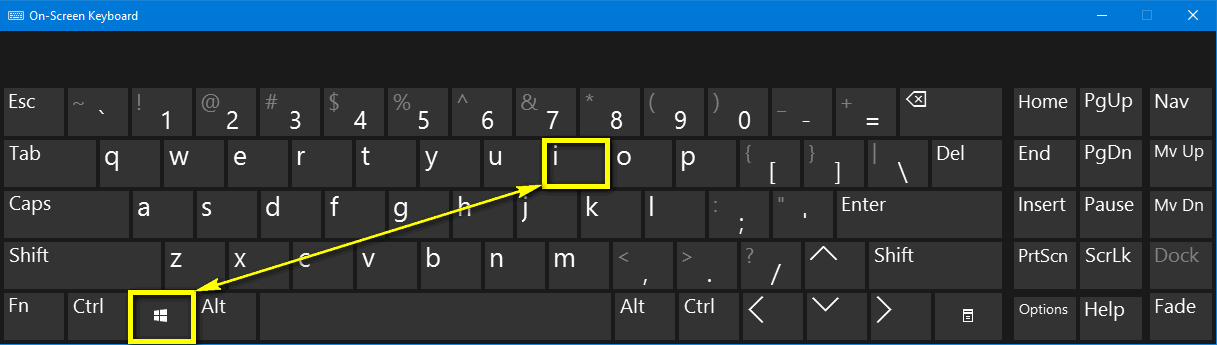
1. The Best Way to Open Windows 10 Settings Like a Pro: Use Win+I Key Combination

2. From Taskbar (available since Anniversary Update)

Right-click the Taskbar and select Settings:

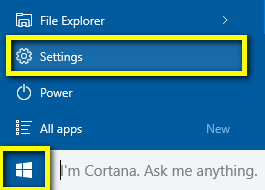
3 From Start menu

Click on the Start.
Select Settings:

4. From Action Center

Click on Action Center icon.
Click on All settings quick action button:


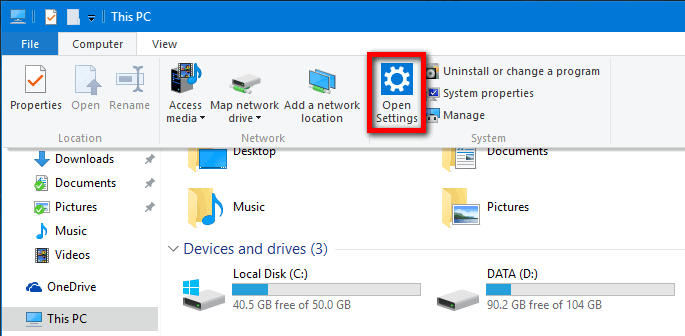
5. From This PC

Click on File.
Click Open Settings:

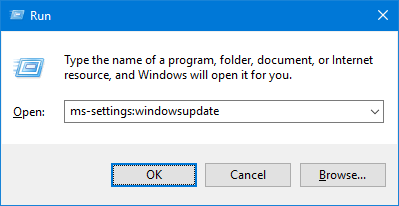
6. Open a definite setting app directly using the Run Dialogue

You actions should be like the following:

Press Win+R,
Type for example ms-settings:windowsupdate to go directly to the Updates Center.

Was this useful? Tell us in the comments!

Adam Swift

Adam is a real tech maniac. He likes to spend time testing phones, tablets, laptops, as well as any other technical devices, and write practical manuals on their functions. He often sleeps all day, but always works at night. Adam bought his first computer in 1999, being an absolute beginner who never held a computer mouse in his hands. He began to study Windows, constantly experimented and often crashed the operating system. But six months later, he was able to reinstall Windows 98 from a scratch on his own, fix almost any software problem on a PC, he also did hardware upgrades and realized that computers, operating systems and programs are now his biggest passion. In addition, Adam has always been a big lover of phones. With the advent of smartphones with Android OS, he began to pick at them much more than in computers. Now Adam loves to study privacy issues in instant messengers, blocking unwanted calls and other nuances related to privacy and security on the network. You can follow him on Twitter: https://twitter.com/tunecomp

Published by
Adam Swift

This website uses cookies.

Read More