Wi-Fi Hotspot is a marvelous feature that allows you to use your Android phone or tablet as a router. Thus, you can share your mobile Internet connection via Wi-Fi with other devices: tablets, laptops, another phones, desktops, anything else that has built-in or external 802.11a/b/g/n compatible wireless module (or a Bluetooth capability as a backup variant).
Thus, you can connect several client devices to your hotspot and consequently to the Internet at the same time. Of course, they will share your bandwidth and the Internet speed will decrease proportionally. In Wi-Fi Hotspot mode your mobile data functions as the WAN port of a router and your Wi-Fi interface – as LAN ports. Here is our guide on how to set up a Wi-Fi hotspot on Android 8 and 7 and use your Android phone as a router.
Note! If Wi-Fi is on when you turn on the hotspot it will turn off automatically. Android cannot receive and redistribute Internet via WiFi at the same time.
How to set up a Wi-Fi Hotspot on Stock Android 10
- Go to Settings.
- Tap Network & Internet.
- Here dive into Hotspot & tethering:
- Select Wi-Fi hotspot:
- Here you can pick the name, select the security mode (in is highly recommended to use WPA2-Personal) and specify a strong password.
- When you are done with configuring your access point, switch it on using the toggle at the top:
Turn Off Automatically
In some cases, for instance if you plan to distribute the Internet from your mobile phone for a relatively long period of time, it is better to turn off the automatic disconnect function. It saves battery power, but if you leave this option turned on, the access point may turn off unexpectedly.
AP Band
On devices that support 5 GHz you can select the band for your AP as well. Opt to use 2.4 GHz to provide a wider coverage or 5 GHz to eliminated wireless interference. I prefer the 5 GHz range primarily because fewer outsiders are able to detect my access point.
CyanogenMod 12 (Android 7)
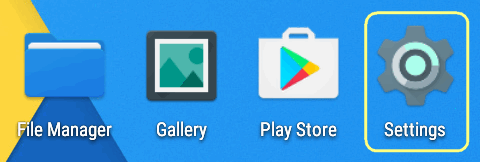
- Go to Settings:
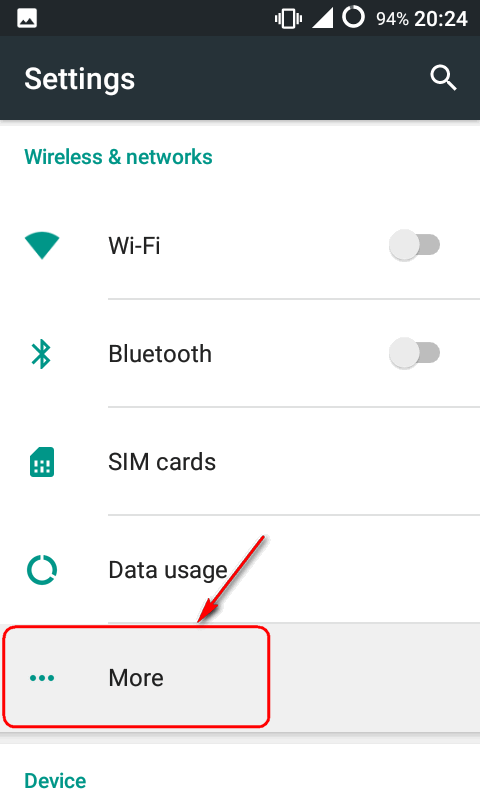
- Tap More in the Wireless & networks section:
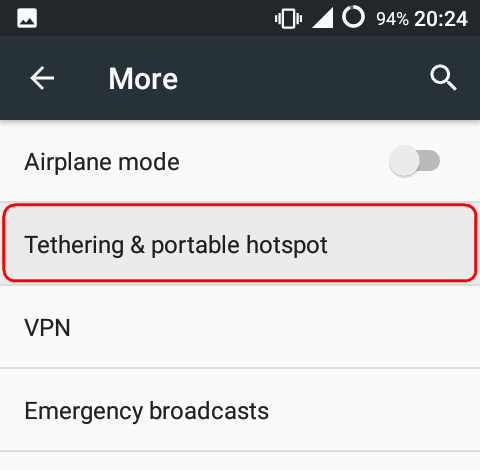
- Select Tethering & portable hotspot:
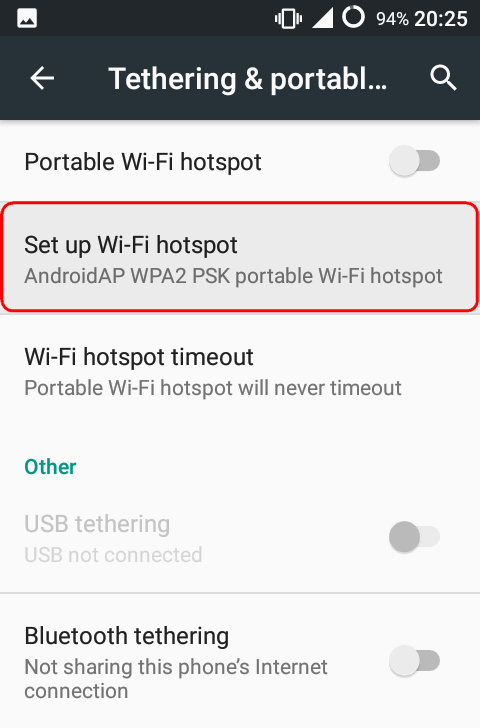
- Here you can configure your Mobile Hotspot. You don’t have to turn it on now. First, tap on Set up Wi-Fi hotspot:
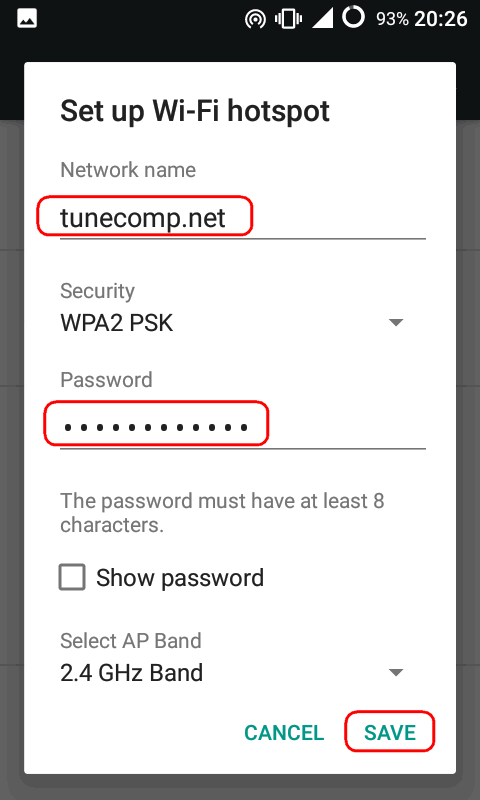
- Specify a network name and password for your mobile hotspot. And don’t forget to tap SAVE afterwards to apply changes:
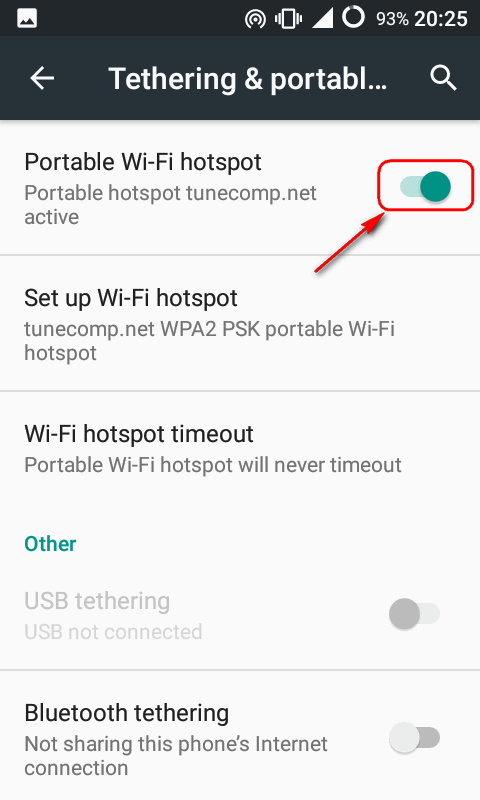
- Now it’s time to turn on Portable Wi-Fi hotspot:
You can also use Bluetooth tethering as the alternative. Just activate the feature on the same screen (shown above).
How to turn off a Wi-Fi hotspot on Android 8, 7
To disable your mobile hotspot you may
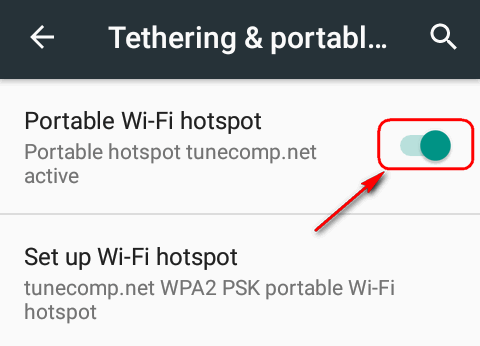
- either head to Settings > Wireless & Networks > More > Tethering and portable hotspot and tap the toggle.
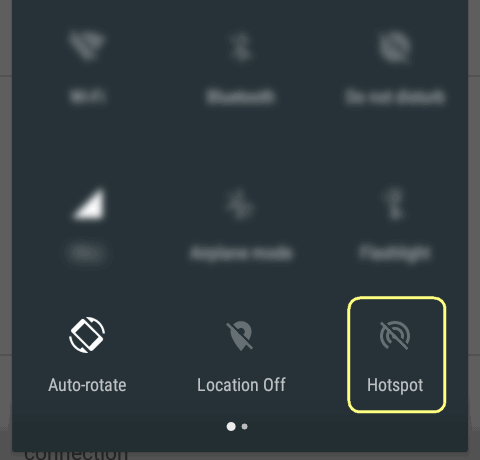
- or click the Hotspot toggle in the Quick Settings panel:
Now you know all that we know. If you have something to add, drop a comment below.
Read next: How to View Saved Wi-Fi Password on Android 10 (No Root Required)
Adam Swift Adam is a real tech maniac. He likes to spend time testing phones, tablets, laptops, as well as any other technical devices, and write practical manuals on their functions. He often sleeps all day, but always works at night. Adam bought his first computer in 1999, being an absolute beginner who never held a computer mouse in his hands. He began to study Windows, constantly experimented and often crashed the operating system. But six months later, he was able to reinstall Windows 98 from a scratch on his own, fix almost any software problem on a PC, he also did hardware upgrades and realized that computers, operating systems and programs are now his biggest passion. In addition, Adam has always been a big lover of phones. With the advent of smartphones with Android OS, he began to pick at them much more than in computers. Now Adam loves to study privacy issues in instant messengers, blocking unwanted calls and other nuances related to privacy and security on the network. You can follow him on Twitter: https://twitter.com/tunecomp
View Comments
This is not for Nougat.
Go to Settings/Connections/Mobile hotspot and tethering.
Turn on Mobile Hotspot.
Click on "Mobile Hotspot" to open a new page which has password