People use screenshots very often. They serve to save some important information displayed on the screen. Sometimes we take it not to forget something, another time it can be used as an evidence. For instance, you can send the screenshot of an error to the developer of some app for them to better deal with it and finally release a fix. Here is how to take screenshots on Galaxy devices.
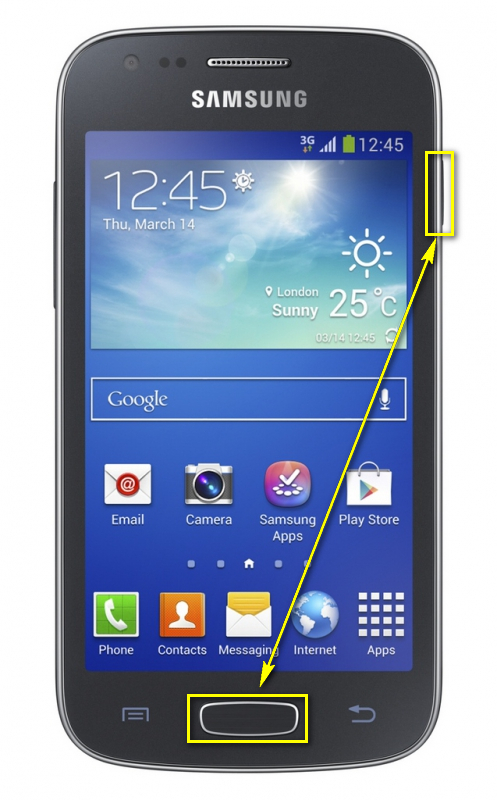
Ace 4 SM-G313 (318)
Press Power and Home at the same time and hold them for a couple of seconds until you hear the sound and feel a vibration:
GT-I8160
Here some peculiarities: Hold Home button (like a shift) and press Power shortly:
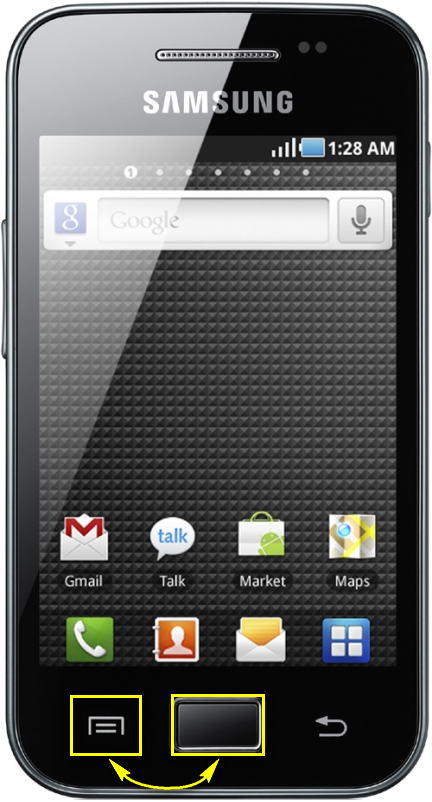
GT-S5830
Press Home and Back:
Where are the screenshots stored?
Galaxy Ace III, IV:
Device storage\Pictures\Screenshots
Galaxy Ace II:
SDCARD\ScreenCapture
Adam Swift
Adam is a real tech maniac. He likes to spend time testing phones, tablets, laptops, as well as any other technical devices, and write practical manuals on their functions. He often sleeps all day, but always works at night. Adam bought his first computer in 1999, being an absolute beginner who never held a computer mouse in his hands. He began to study Windows, constantly experimented and often crashed the operating system. But six months later, he was able to reinstall Windows 98 from a scratch on his own, fix almost any software problem on a PC, he also did hardware upgrades and realized that computers, operating systems and programs are now his biggest passion. In addition, Adam has always been a big lover of phones. With the advent of smartphones with Android OS, he began to pick at them much more than in computers. Now Adam loves to study privacy issues in instant messengers, blocking unwanted calls and other nuances related to privacy and security on the network. You can follow him on Twitter: https://twitter.com/tunecomp