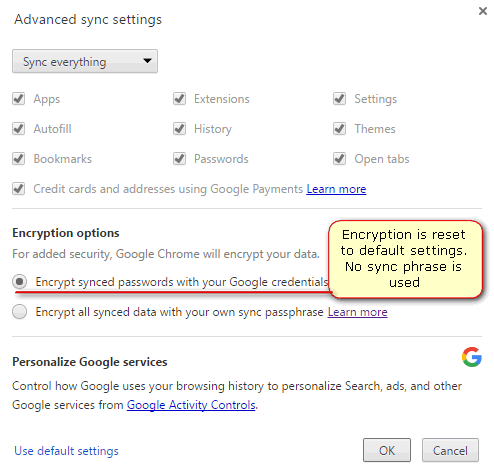
When you enable the sync passphrase in Google Chrome you switch on the encryption for your bookmarks, logins, passwords, visited websites, payments methods, addresses and other things. And all you have to do is to switch the selector. Turning it off is not so easy – you need to reset Sync using the special steps. You may want to reset sync if you forgot your sync passphrase or just want to turn it off.
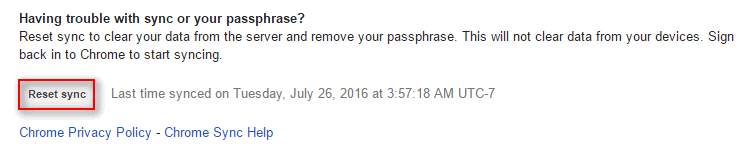
Scroll down and click on Reset Sync at the bottom of the web page:
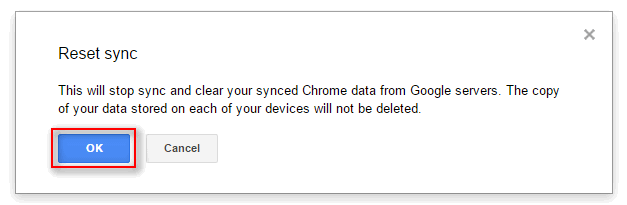
Click OK:
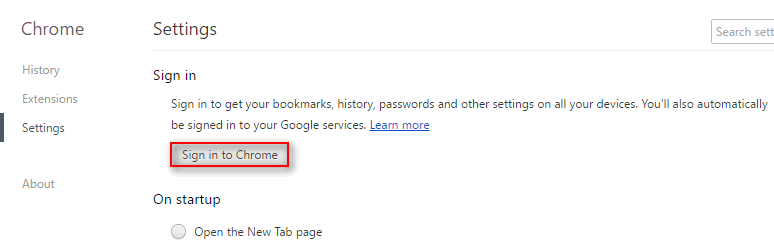
Click Sign in to Chrome:
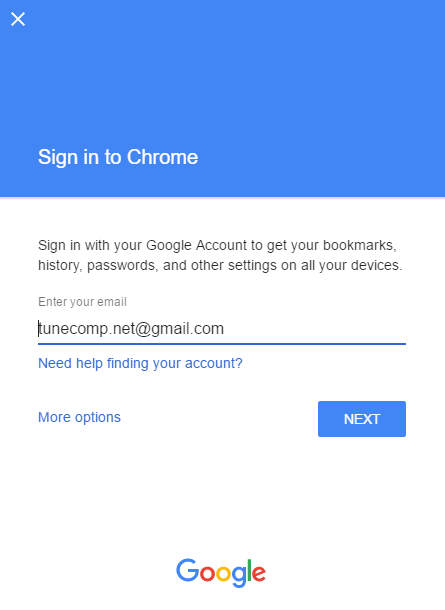
Enter you login and password… and a verification code of you have 2-step verification enabled:
As the result the sync is enabled again while the passphrase is not used any more: Done! Now all data is encrypted with your Google login and password. However, you will need to enter the 2-step verification code as well if you have previously enabled 2FA.
Adam Swift
Adam is a real tech maniac. He likes to spend time testing phones, tablets, laptops, as well as any other technical devices, and write practical manuals on their functions. He often sleeps all day, but always works at night. Adam bought his first computer in 1999, being an absolute beginner who never held a computer mouse in his hands. He began to study Windows, constantly experimented and often crashed the operating system. But six months later, he was able to reinstall Windows 98 from a scratch on his own, fix almost any software problem on a PC, he also did hardware upgrades and realized that computers, operating systems and programs are now his biggest passion. In addition, Adam has always been a big lover of phones. With the advent of smartphones with Android OS, he began to pick at them much more than in computers. Now Adam loves to study privacy issues in instant messengers, blocking unwanted calls and other nuances related to privacy and security on the network. You can follow him on Twitter: https://twitter.com/tunecomp