Contents
We all know about Google Translate service very well. You can go to translate.google.com to translate a sentence or a single word, you can use the application for Chrome, etc.
But the thing is you have to do too many movements to translate: mark the text, right-click, copy, go to another tab, paste. It is very annoying especially when you need to know the translation of a single word on the website.
So how to speed up the process to make it quick and pleasant? Here are our tips on how to quickly translate a single word or a piece of text in Chrome.
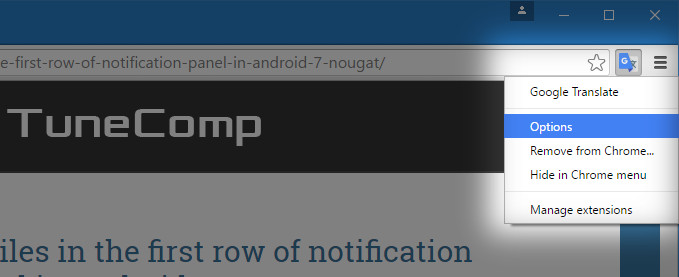
Right-click the extension icon in the toolbar, go to Options:
Specify your primary language and whether you prefer to see pop-up or not.
Be advised that if your primary language is the same as on the website you won’t see neither a popup icon nor translation.
a) If the default setting (Display icon that I can click to show pop-up) is selected, you will have a pop-up icon. Click it and you will have a translation.
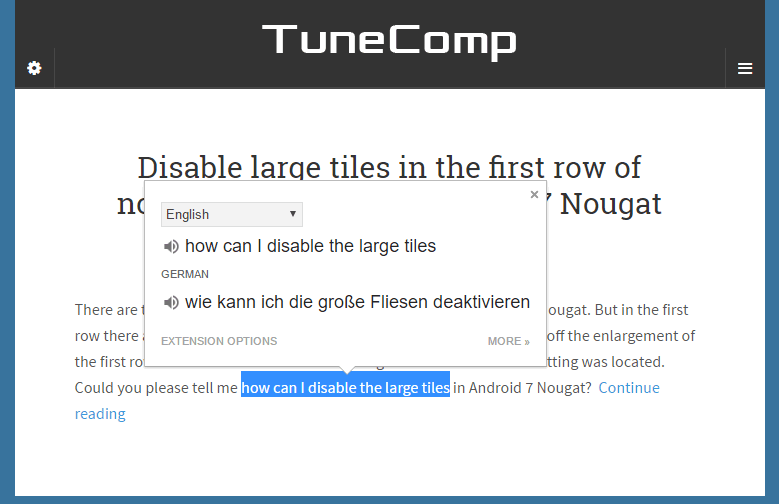
b) Immediately display popup: a word or a phrase will be translated immediately after selection. No clicks needed at all! Just select a word or a piece of text.
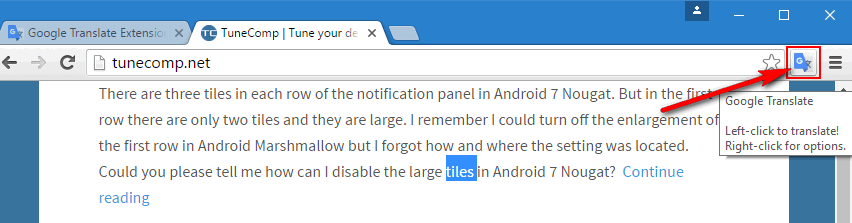
c) Don’t display icon or popup: click the extension icon in the toolbar to view the translation:
My choice is instant translation on selection: Immediately display popup.
Use your mouse to select a piece of text on the website. You can also double click a word to select a single word. What happens after should be configured in Options of Google Translate extension (described in the previous section).
That’s it!
This website uses cookies.
Read More

View Comments
Thanks, very helpful!
Thanks :)
thx
Thanks bro