How to make USB eject icon always visible on the Taskbar of Windows 10
Contents
By default Windows 10 is configured to hide some icons from the Taskbar to save space. And often people don’t know how to safely remove USB flash or correctly stop using another external storage device because they don’t see the USB eject icon. And here is our simple guide on how to make USB eject icon always visible on the Taskbar of Windows 10.
How it looks by default
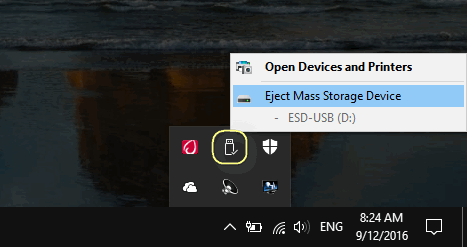
This is how everything looks by default: the USB eject icon (Eject Mass Storage Device icon) is hidden in a menu. And you have to click the arrow to see it:
Eject Mass Storage Device icon on the Taskbar of Windows 10
How to make USB Eject icon always visible on the Taskbar of Windows 10
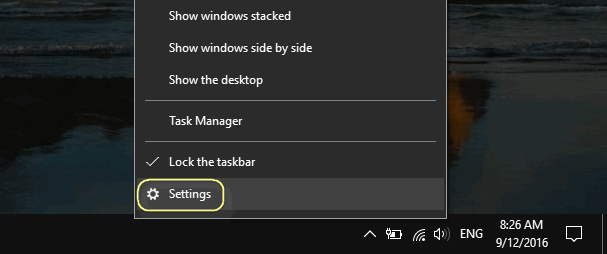
Right-click the Taskbar.
Select Settings:
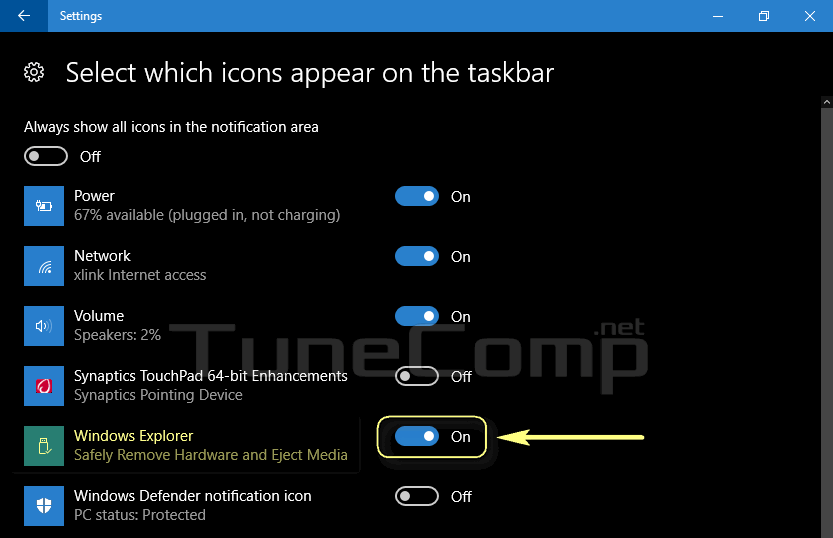
Scroll down the page and click on the link Select which icons appear on the taskbar:
Enable Windows Explorer:
Show flash drive icon on the taskbar
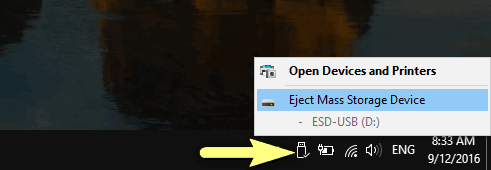
Henceforth, it will always appear on the taskbar:
That’s it! Stay tuned for more tips!
If something is unclear or you have problems, please describe them in the comments below. Thank you.
Adam Swift
Adam is a real tech maniac. He likes to spend time testing phones, tablets, laptops, as well as any other technical devices, and write practical manuals on their functions. He often sleeps all day, but always works at night. Adam bought his first computer in 1999, being an absolute beginner who never held a computer mouse in his hands. He began to study Windows, constantly experimented and often crashed the operating system. But six months later, he was able to reinstall Windows 98 from a scratch on his own, fix almost any software problem on a PC, he also did hardware upgrades and realized that computers, operating systems and programs are now his biggest passion. In addition, Adam has always been a big lover of phones. With the advent of smartphones with Android OS, he began to pick at them much more than in computers. Now Adam loves to study privacy issues in instant messengers, blocking unwanted calls and other nuances related to privacy and security on the network. You can follow him on Twitter: https://twitter.com/tunecomp
How does your problem look like? Could you please describe? The USB icon stays in the hidden area? What equipment do you connect to USB? What Windows version do you have?
I tried it and it didnt work after I tried several times
I have a new HP computer with Windows 10, the icon for the safely remove hardware is not shown. I have enabled it in settings to show on taskbar, to no avail, please help.
Since updating Windows yesterday this icon has completely disappeared.
I have just checked it out. The icon is in its place if any device is connected. Windows 10 version 2004, OS Build 19041.508.
Windows 10 version 2004, OS Build 19041.546
icon disappeared, not working after update...
Same here. There is no USB icon anymore on the taskbar after latest update.
I have the same issue; the icon appears when I connect a device and then disappears.

View Comments
Thank you so much. It helped a lot.
I'd already tried that and it didn't work for me
How does your problem look like? Could you please describe? The USB icon stays in the hidden area? What equipment do you connect to USB? What Windows version do you have?
I tried it and it didnt work after I tried several times
I have a new HP computer with Windows 10, the icon for the safely remove hardware is not shown. I have enabled it in settings to show on taskbar, to no avail, please help.
Since updating Windows yesterday this icon has completely disappeared.
I have just checked it out. The icon is in its place if any device is connected. Windows 10 version 2004, OS Build 19041.508.
Windows 10 version 2004, OS Build 19041.546
icon disappeared, not working after update...
Same here. There is no USB icon anymore on the taskbar after latest update.
I have the same issue; the icon appears when I connect a device and then disappears.