Contents
In this guide we will explain how to create a shortcut to Incognito Window of Chrome. It will allow you to launch it directly in one click of a mouse. In such a way, you will no more at risk of leaking your sensitive information such as sites you visit and you login credentials. This trick is especially useful for using on public computers (for instance, at offices), where third-parties can collect your email address, phone number or god forbid use your saved passwords. Note that you can also set up a shortcut in such a way so that it will open a definite start page in the Incognito Window.
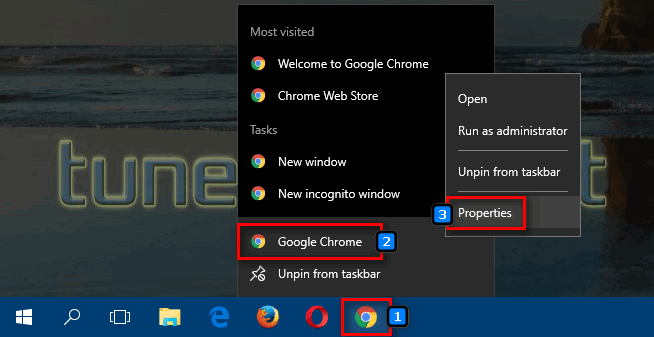
Step 1. Right-click the existing Chrome shortcut.
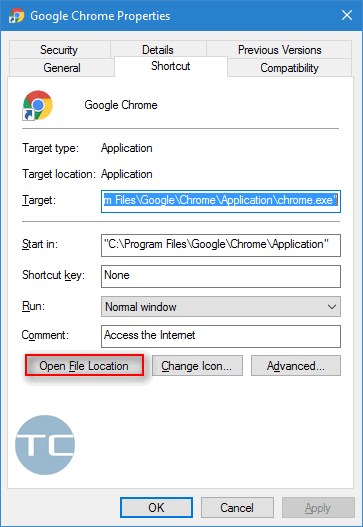
Step 2. Select “Properties”
Step 3. Click “Open File Location”
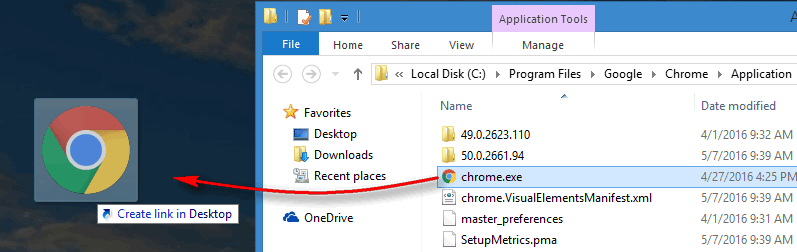
Step 4. Drag and drop on the Desktop.
Step 5. Right-click the new shortcut
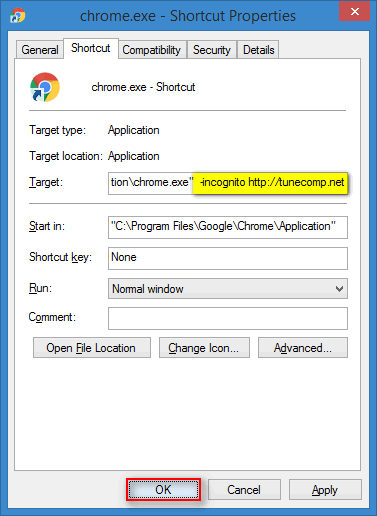
Step 6. Add a space and then add -incognito. You can also add one more space and a URL. In this case your incognito window will always open the specified website:
"C:\Program Files (x86)\Google\Chrome\Application\chrome.exe" -incognito
Click “OK” to save the shortcut:
You can set up a start page. Just add a space after “-incognito” and type any URL you like:
"C:\Program Files (x86)\Google\Chrome\Application\chrome.exe" -incognito //tunecomp.net
Click “OK” to save the shortcut.
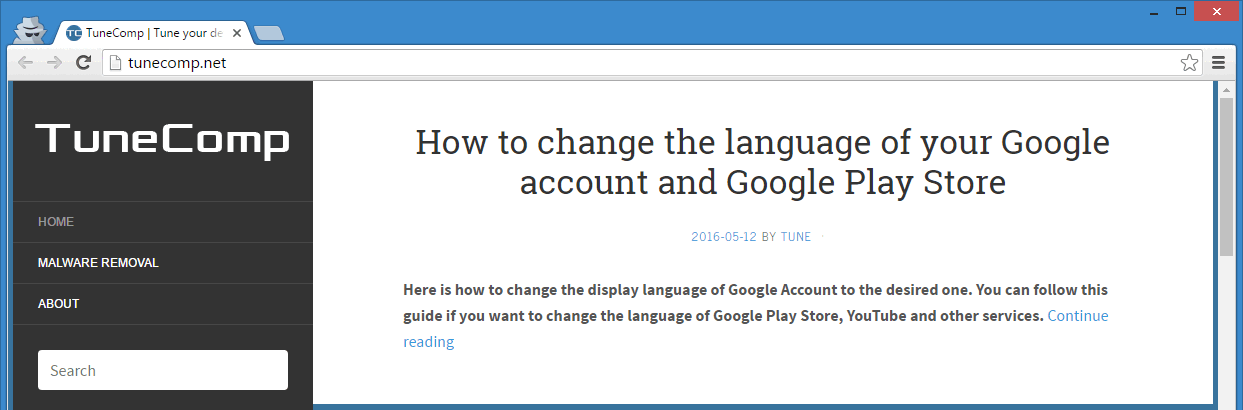
Now when you click the shortcut the website will open in Incognito Window of Chrome:
We hope, you will find this tutorial useful. Please, feel free to drop a comment!
This website uses cookies.
Read More